Maintenance Connection Everywhere (MCe) · EAM/CMMS manuals
This setup must be done through System Config tools, on SaaS by the SaaS administrator, on-prem by your IT department.
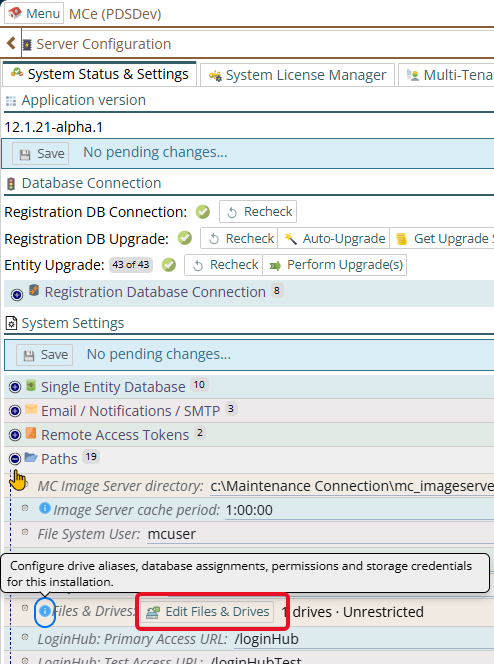
The Edit Files & Drives
Press the button to get the dialog
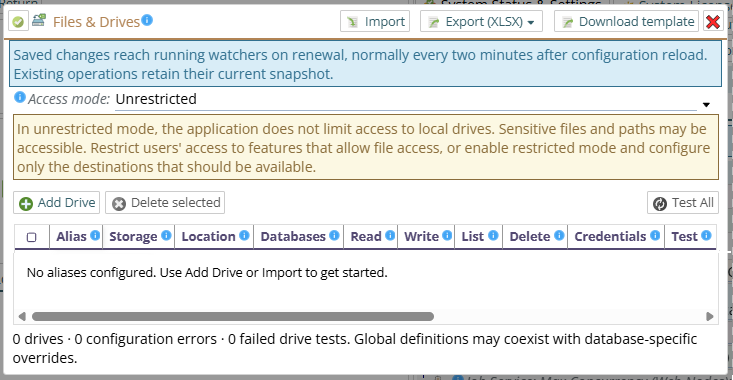
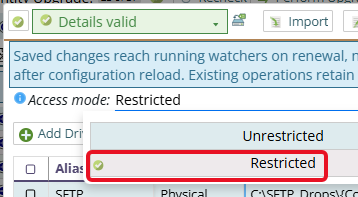
One of the most important setting for most systems, it to set it to Restricted so that the only files that can be accessed are those in directories you have explicitly allowed.
You can then Add a Drive:
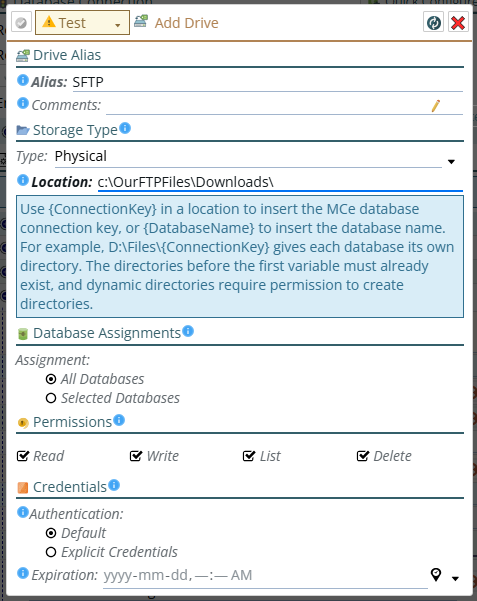
Note that when you create a drive, you pick a type. After you have saved it you can not change the storage type, you need to delete it and create a new one.
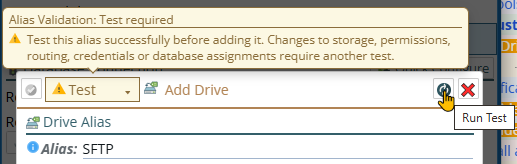
Now test
When ready run a test:
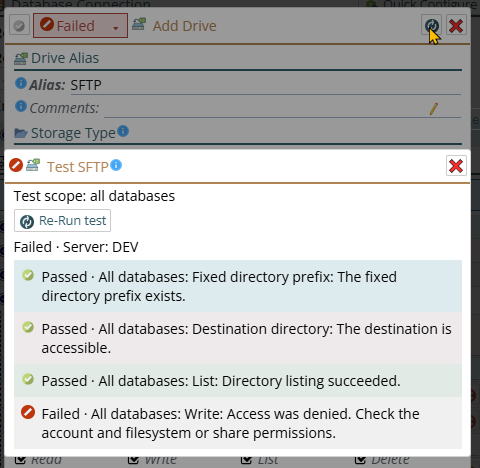
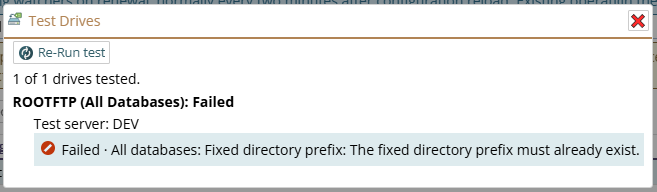
A partial failed test
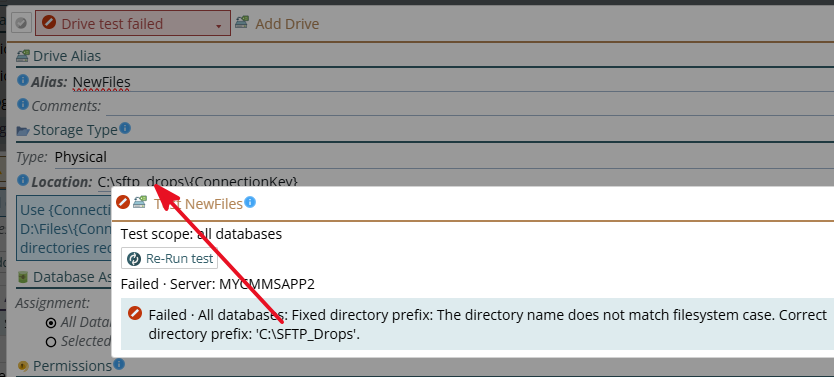
Case Sensitivity
For performance and for LINUX compatibility, case sensitivity is enforced, but at this point you are given user friendly message so you can fix it.
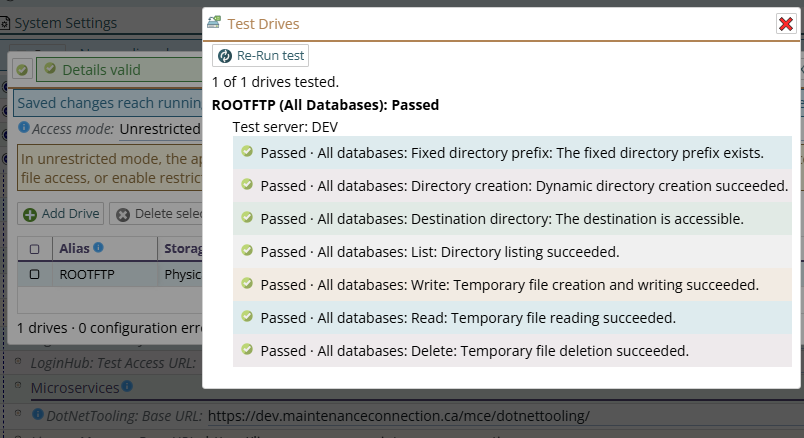
And now...success
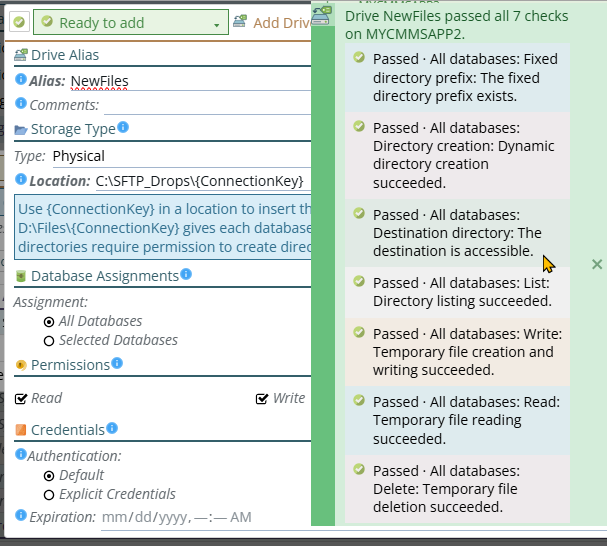
Note that it does not check directories with {ConnectionKey} name, it just makes sure that it will allow them.
And later you can edit it:
Reminder that when you create a drive, you pick a type. After you have saved it you can not change the storage type, you need to delete it and create a new one.
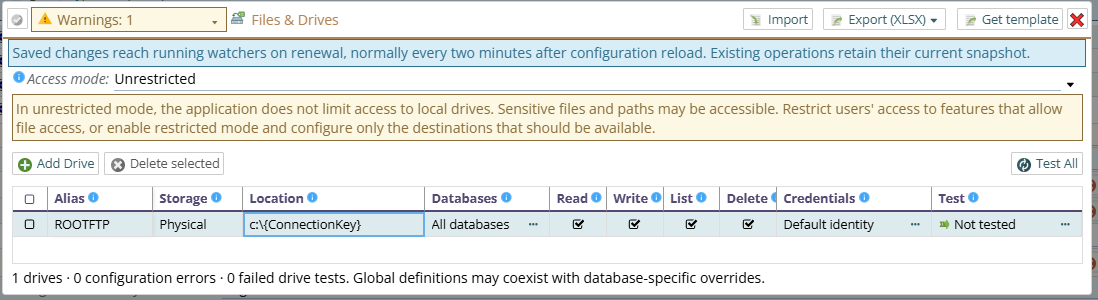
When you "Add Drive" you'll be presented with a dialog to describe it. The choices depends on what drive type you pick, here I've chosen SFTP (We recommend SFTP over legacy FTP and FTPS for a variety of reasons, but if you only have FTP or FTPS we work those the best we can.)
How do you delete?
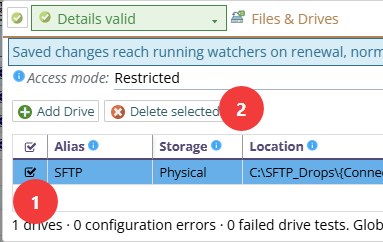
First select it (1), then press 'Delete selected'
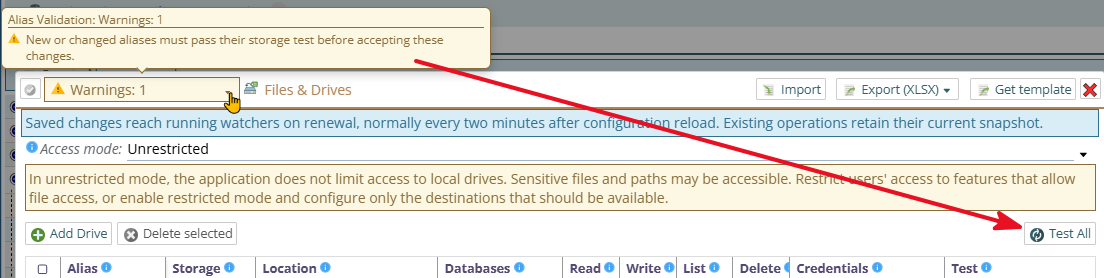
Changes need to be tested:
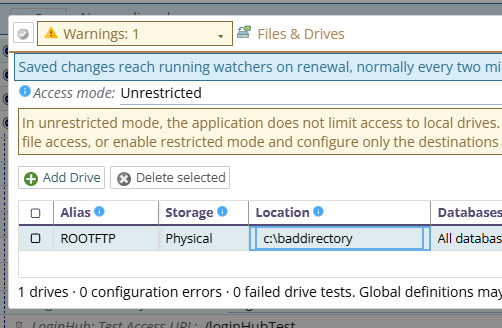
On the other hand, if I put in a bad directory:
Once your needed drives are set up, be sure to switch to Restricted mode
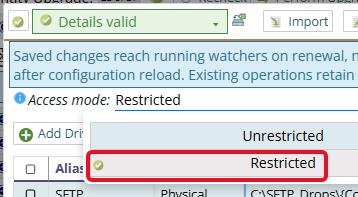
While you COULD run in unrestricted mode - giving access to anything the computer has access to, this is not advised for most environments. As a result, we are mentioning it 'last' here.
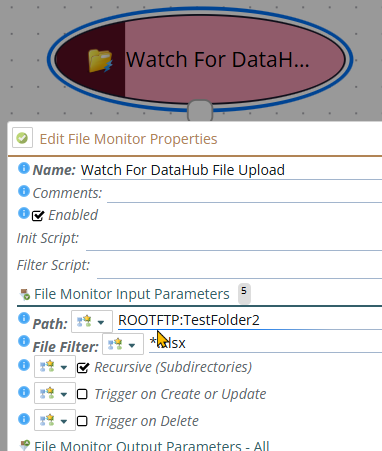
Then, while not relevant directly here, here is how you use it: