
 Maintenance Connection Everywhere (MCe) · EAM/CMMS manuals
TL;DR
Reports can be placed in several places to make them convenient to use.
One of the places is on a tab on an edit page. This document shows how to do that specifically, but by extension, shows how to do it in a variety of places. It is using WO as the example, but it works for almost all modules.
Details
First you need to have the report set up properly
This is done in the Reports Definition module
Getting to the Report Definition module
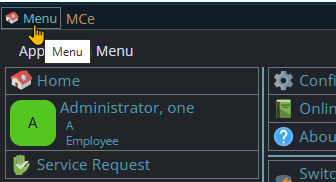
Start by clicking on the main menu button on the left panel, top left portion.
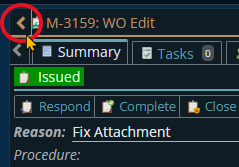
If the menu button isn't visible, you are likely on a screen too narrow to see everything, press on the left pointing gold button to take you so you can see the menu button.
Variation 1: What you have access to
Depending on the size of your screen, what products your company has purchased and what rights you have been granted, the choices in the menu will vary.
Variation 2: How wide your window is
The menu will show up as 1, 2 or 3 columns depending on how wide your screen is.
If you are on a cell phone, and some smaller tablets in portrait mode or a narrow window on a laptop or desktop, you'll see the menu as one column that you scroll through using your finger or the scroll wheel or the scroll bar depending on your device, browser and whether you have a touch screen or not.
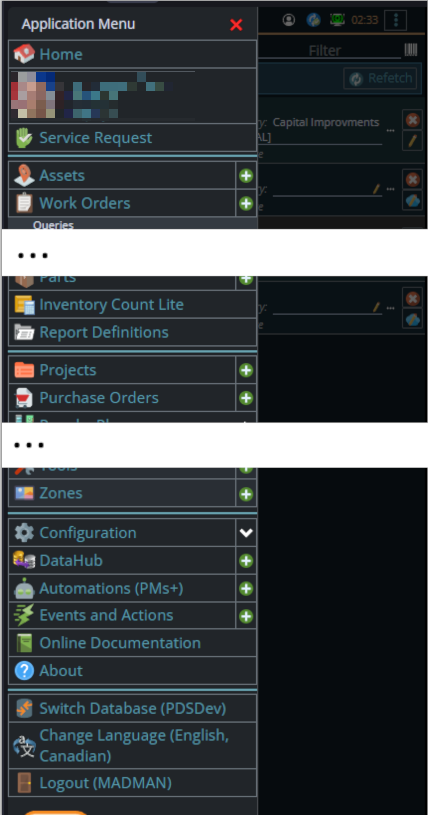
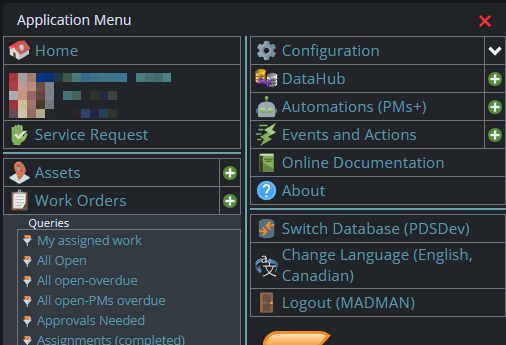
A bit wider, some cell phones in landscape, some tablets in portrait, most tablets in landscape and 'somewhat' wider laptop/desktop, will show it as 2 columns wide, with the middle column available on the left by scrolling down
And wider screens, some landscape tablets, and wider windows on a laptop or desktop show it as 3 columns. If you have all the dropdown sections expanded, it may still require vertical scrolling to see all the choices depending on the height of your device or window.
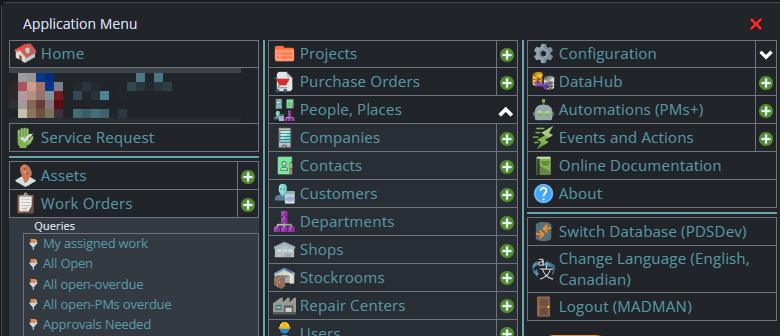
From there you can find the Report Definition module
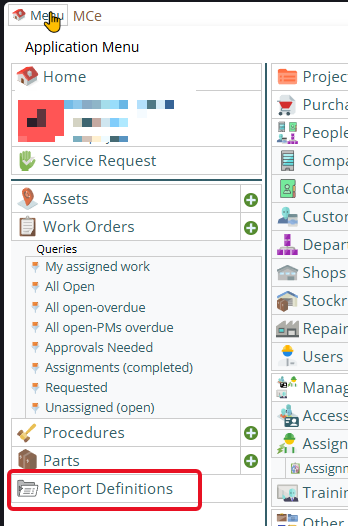
Which will take you to where you edit an existing or create a new report
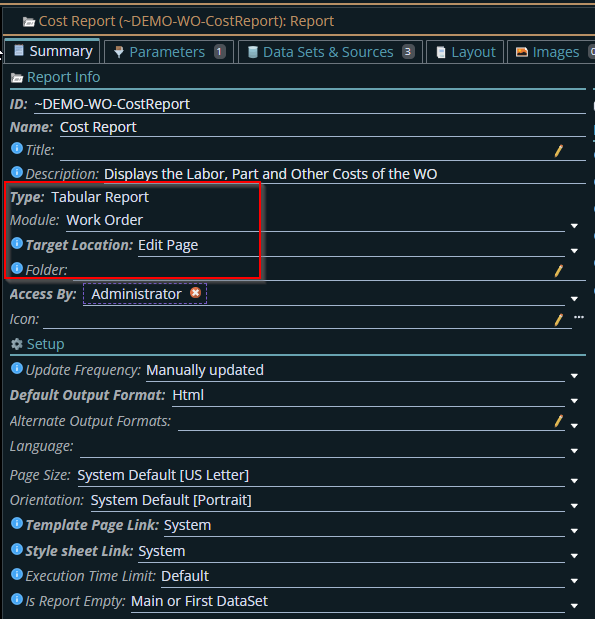
On the Summary tab of the report configure the following fields:
| Field Name | Value |
|---|---|
| Module | Work Order |
| Target Location | Edit Page |
(NOTE: This will tell MCe that the report belongs to Work Order and it will be visible in the picker when selecting the report)
Getting to Access Manager
The Access manager requires that you have rights to the "Access Manager" license. YOU decide what permissions it needs, not us, that is discussed elsewhere.) The Access Manager is on the Configuration page
Start by clicking on the main menu button on the left panel, top left portion.
If the menu button isn't visible, you are likely on a screen too narrow to see everything, press on the left pointing gold button to take you so you can see the menu button.
Variation 1: What you have access to
Depending on the size of your screen, what products your company has purchased and what rights you have been granted, the choices in the menu will vary.
Variation 2: How wide your window is
The menu will show up as 1, 2 or 3 columns depending on how wide your screen is.
If you are on a cell phone, and some smaller tablets in portrait mode or a narrow window on a laptop or desktop, you'll see the menu as one column that you scroll through using your finger or the scroll wheel or the scroll bar depending on your device, browser and whether you have a touch screen or not.
A bit wider, some cell phones in landscape, some tablets in portrait, most tablets in landscape and 'somewhat' wider laptop/desktop, will show it as 2 columns wide, with the middle column available on the left by scrolling down
And wider screens, some landscape tablets, and wider windows on a laptop or desktop show it as 3 columns. If you have all the dropdown sections expanded, it may still require vertical scrolling to see all the choices depending on the height of your device or window.
Once the menu is up, the exact location of the configuration button depends on how wide your window is and how many options you have access to. On most it will be at the top of the 2nd or 3rd column of the menu but on a cell phone or narrow window, it will be down partway in the first column.
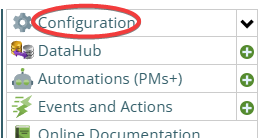
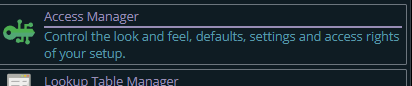
Then from there you choose the Access Manager, or what we call the funny green key
You can also click on the right hand V button in the main menu (if you don't already have it open), noting if you do it this way, you can directly pick the Access Manager tool that you want to go into.
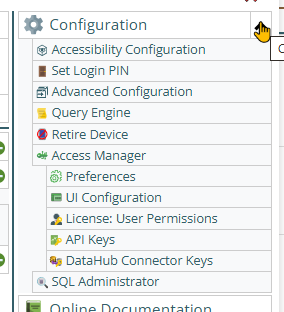
Now press the Preferences button
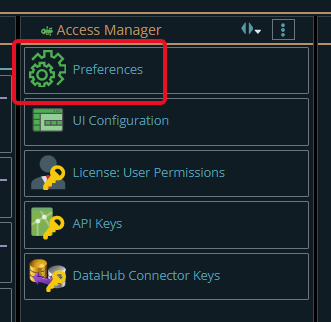
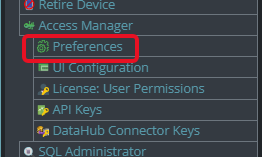
Next we have to make it available for the user to run it
Most users don't have access to the Report Definitions module
In preferences, go to the Work Order settings
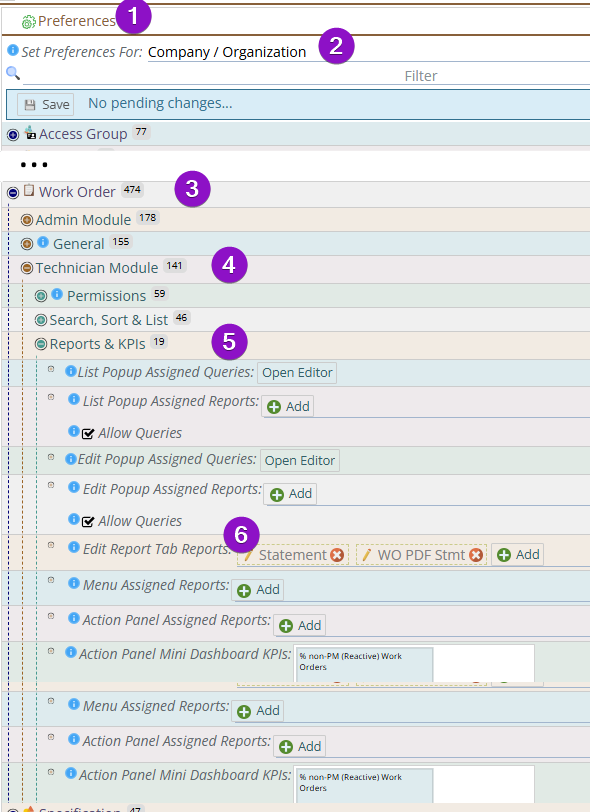
from the picture above:
1. Choose preferences
2. Choose who you want to get this report, in this case I left it at Company/Org because I want everyone to see it
3. Pick WO
4. Pick whether it is going to show up in Technician view (technicians and admin can see this view) or Admin view for only people who have access to the Admin view. If you want it in both views, do the next steps twice.
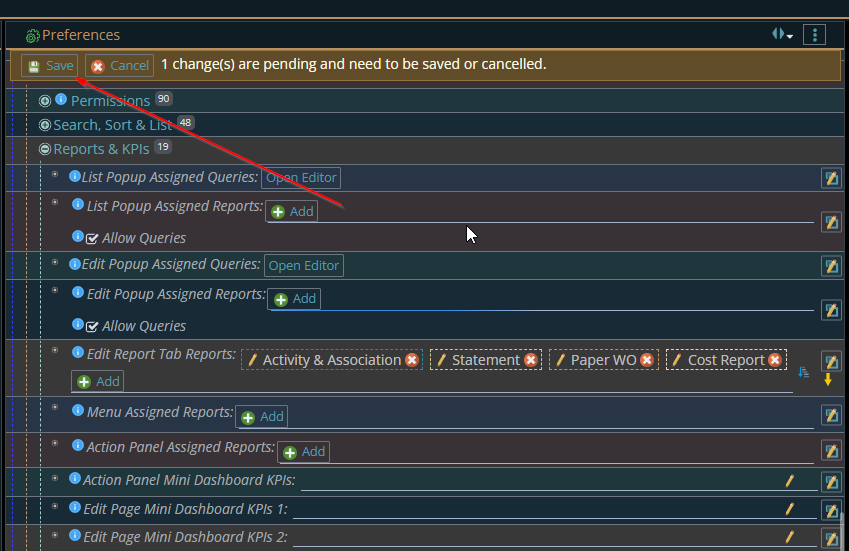
5. Open up Reports and KPIs
6. Go to where you want the report to show up, in this case we want it on the Edit Report Tab because we want it to automatically fill in this parameter and show the report for the current work order being edited.
6. On the Edit Report Tab Reports Click the Add Button
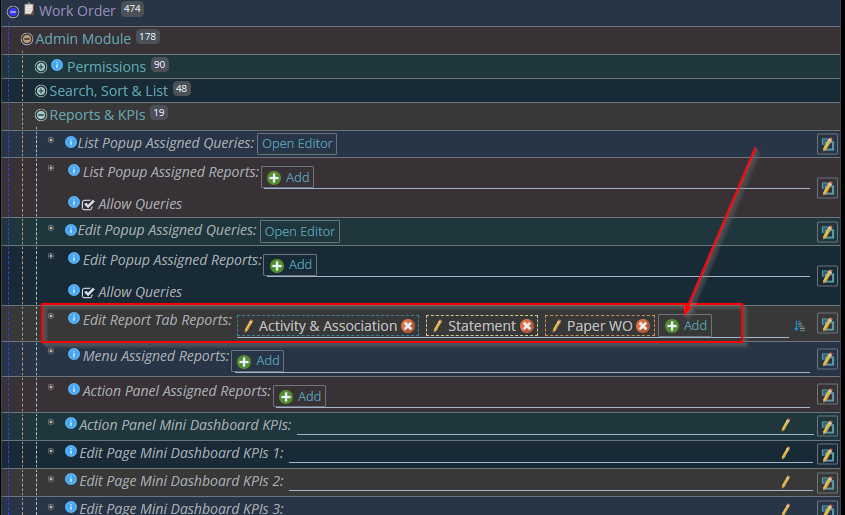
7. Select the previously created report
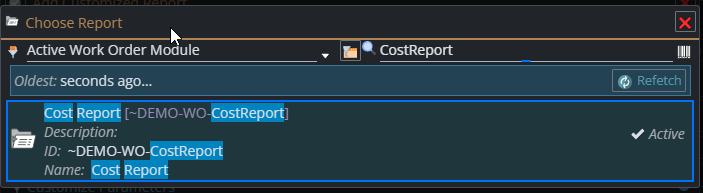
8. Click the Green Check on the upper right side of the window
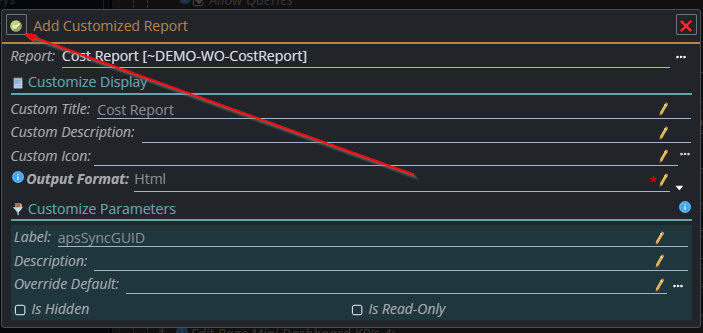
9. Save the Changes