

 Maintenance Connection Everywhere (MCe) · EAM/CMMS manuals
While DataHub connectors are great for one time imports, they are often used for syncing between other systems and might need to be read in hourly or even more frequently than that.
TL;DR
1. To do this, you create an Event and Action that watches for certain named files in certain locations using our sample template as a starting point
- Read in the sample DataHub Connection that you can grab here: export_event_example.kdl
2. Change the Monitor file path and file name to your path and the file you want to import.
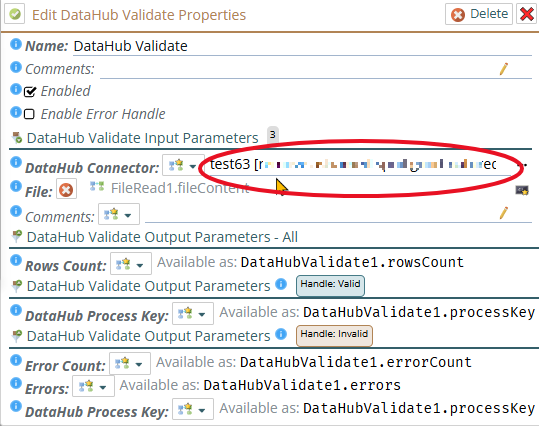
3. In the DataHub Validate, specify the DataHub connector YOU built that you want to use to interpret and read the data from the files.
Prerequisites
- You need to have a DataHub connector built. This is what defines HOW to read a file.
- You need to have activated your DataHub connector.
- You need to have tested above, and to test the auto import, you'll need one or more files to import that you can load after you build your event & action.
- You need to have an Event and Action to read when there is a new file. This document tells how to do that.
Details
You may get an error:

Understanding the error
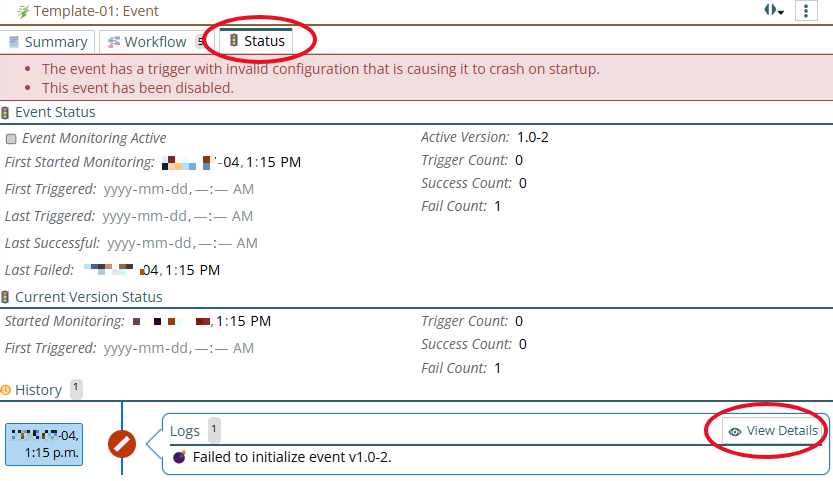
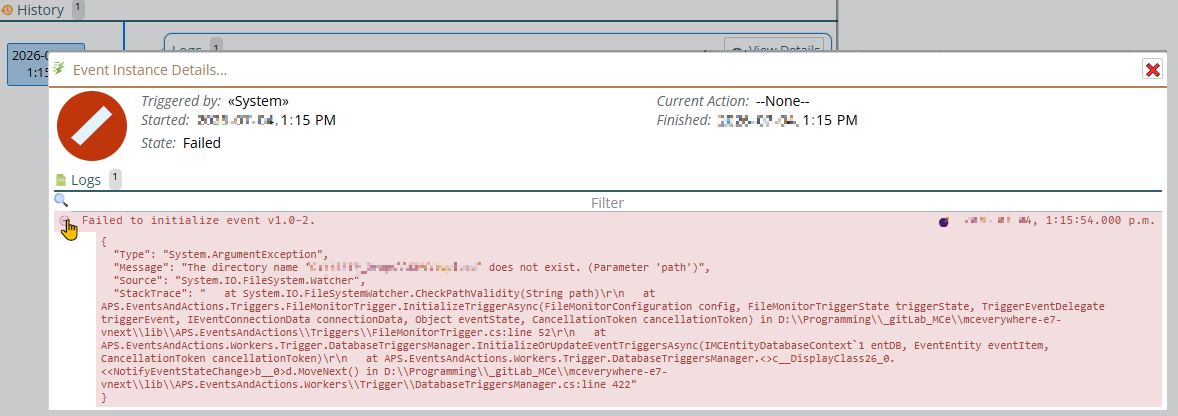
Clicking on the View Details above, and then the + button to see the entire error shows us that the problem is the directory doesn't exist
Fixing the error and setting the path you actually want even if there is no error
Select the Workflow tab

Then click on the event
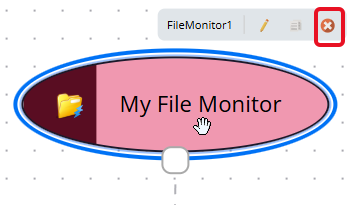
Then click on the pencil (as above) to get to the dialog
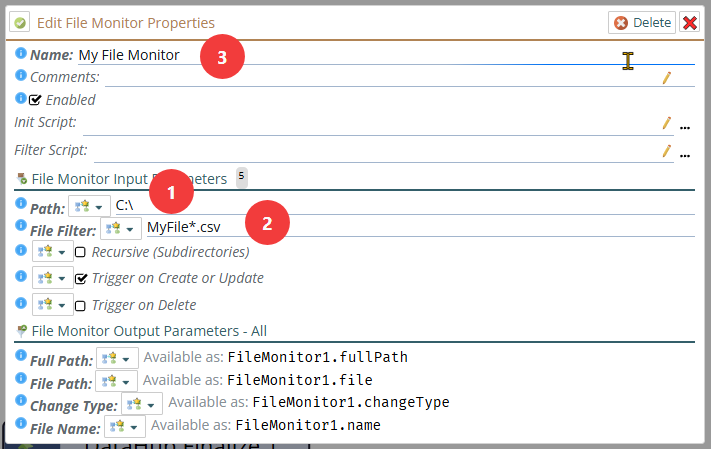
1. Choose the correct Path where your files are going to be stored
2. Put in a valid file filter, in the example, it is looking for any files of type .csv that start with the name "MyFile". The * means "anything" so MyFile.csv MyFile2020.03.04.csv is valid as is MyFile_abc123.csv
3. Optionally change the name that will show up on the graphic.
If you now make it active (on the summary tab)
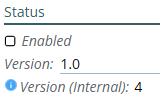
The error should go away in a minute or two after it talks with the server. If not, go check for any new errors as above.
Going back to the workflow, the File reader will do the act of reading the file that triggered the monitor. It knows which file by the parameters specified in the 'File Monitor Output Parameters' above.
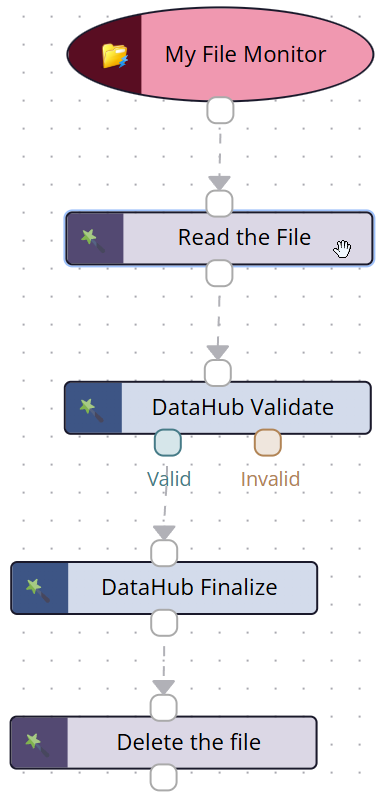
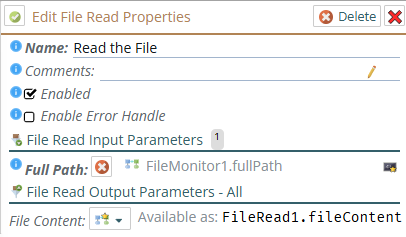
It will then read the file into memory:
You need to change the DataHub Connector file to the one you want to use to interpret the results in the file being imported. You obviously won't have our 'test63' in your system, you will want to use one of yours - likely the one that prompted you to come read this doc.
If you are using the same file and making changes to it and want it imported after each saved change, delete the "Delete the file' action. Generally we don't recommend this.