

 Maintenance Connection Everywhere (MCe) · EAM/CMMS manuals
Why?
If you want to do the same settings for several access groups, but not at a company level, or for several people, the easiest is to do it for one, export, then import and use the tooling to apply a to b
If you maintain a 'template' database (such as some of our dealers do), make changes there, then want to pass the changes to all the live databases? Or a test database then go to production? Or you have changes in production and then want them duplicated in a test or training?
If you messed up and can't find where you put things, you can export, search in a tool like Notepad++ or Visual Studio Code VSC to find it. You might also want to fix it there and reimport it, but this is very technical and we strongly recommend using our Professional Services to do that.
How?
Getting to Access Manager
The Access manager requires that you have rights to the "Access Manager" license. YOU decide what permissions it needs, not us, that is discussed elsewhere.) The Access Manager is on the Configuration page
Start by clicking on the main menu button on the left panel, top left portion.
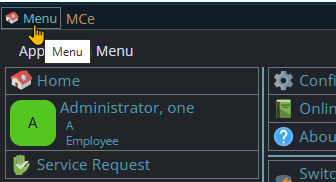
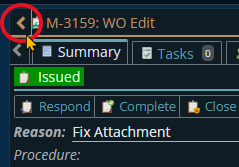
If the menu button isn't visible, you are likely on a screen too narrow to see everything, press on the left pointing gold button to take you so you can see the menu button.
Variation 1: What you have access to
Depending on the size of your screen, what products your company has purchased and what rights you have been granted, the choices in the menu will vary.
Variation 2: How wide your window is
The menu will show up as 1, 2 or 3 columns depending on how wide your screen is.
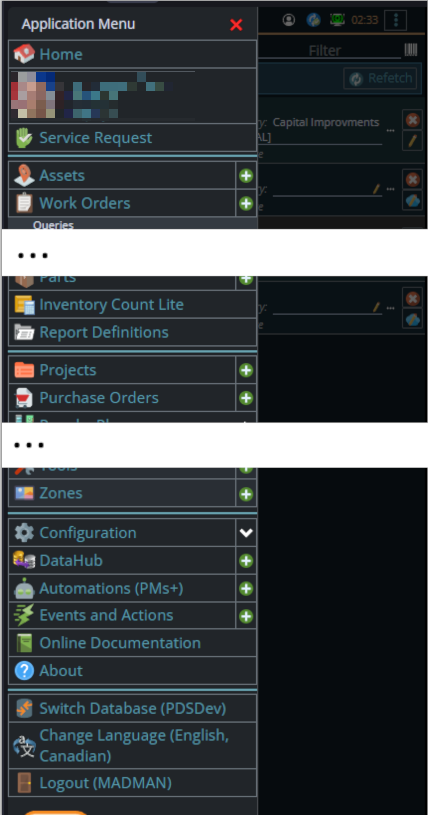
If you are on a cell phone, and some smaller tablets in portrait mode or a narrow window on a laptop or desktop, you'll see the menu as one column that you scroll through using your finger or the scroll wheel or the scroll bar depending on your device, browser and whether you have a touch screen or not.
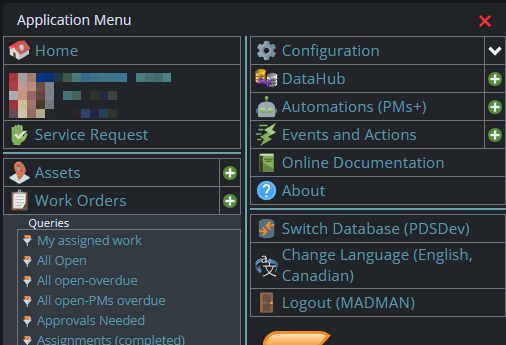
A bit wider, some cell phones in landscape, some tablets in portrait, most tablets in landscape and 'somewhat' wider laptop/desktop, will show it as 2 columns wide, with the middle column available on the left by scrolling down
And wider screens, some landscape tablets, and wider windows on a laptop or desktop show it as 3 columns. If you have all the dropdown sections expanded, it may still require vertical scrolling to see all the choices depending on the height of your device or window.
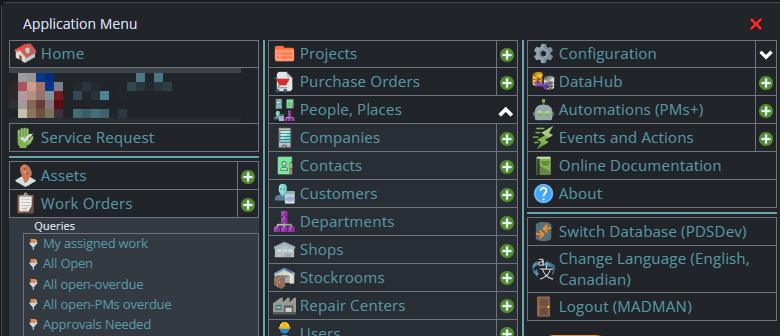
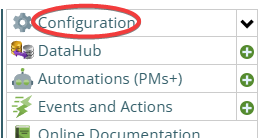
Once the menu is up, the exact location of the configuration button depends on how wide your window is and how many options you have access to. On most it will be at the top of the 2nd or 3rd column of the menu but on a cell phone or narrow window, it will be down partway in the first column.
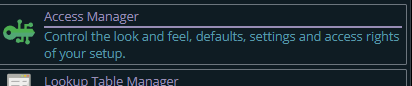
Then from there you choose the Access Manager, or what we call the funny green key
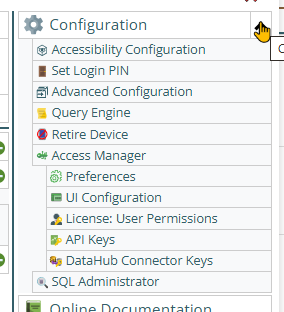
You can also click on the right hand V button in the main menu (if you don't already have it open), noting if you do it this way, you can directly pick the Access Manager tool that you want to go into.
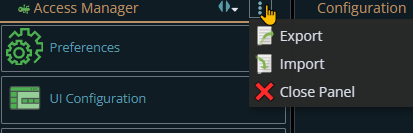
Once you are at the access manager, you need to click on the '3 dot menu' then choose Export
The Export gives you many choices. The specifics you pick depend entirely on why you are doing it.
- Is it 'just' a backup? Select the 1st 3 checkboxes and leave the rest alone
- The most common first choice is: Do you want Preferences, UIConfig or both? Usually you'll pick one or the other.
- include the GUIDs only if you plan to import back into the current database. If you are going to another database, do NOT include GUIDs.
- By default Global (Company/Organization level), Access Group, Repair center and User are selected. But if you know you are only interested in one like Company or ones defined at an Access group level or ones defined for individuals - unselect the rest, it will make the technical file easier to read.
- Then if you know you want it for something specific, you can pick which repair center(s), access group(s) or user(s) are included in the output. Note that as you remove items from the "Export Preferences For", items that below that no longer apply stop showing up.
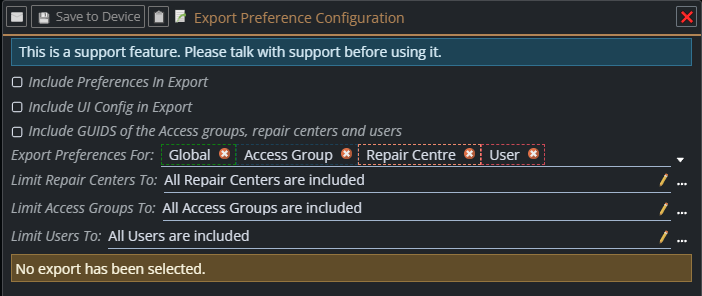
In general try to only include what you need. In many cases you may be better served by saving several files each with different selections, rather than one 'include everything'. These can get very large.
And now what?
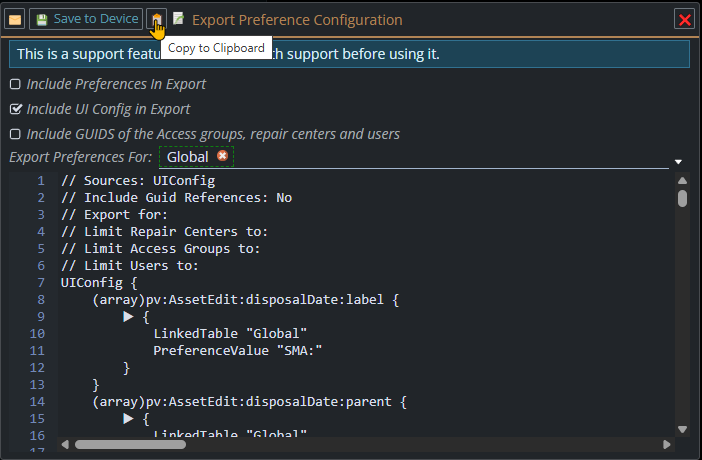
As you make changes, the results will be shown below. In this first example, the 1st 6 lines are documenting WHAT is in this file. This helps our Professional Services verify you sent what you thought you were sending. Then it shows all the settings. Notice that the file is likely MUCH larger than the screen, so you aren't going to often want to view it here. You will want to use a tool like Notepad++ or VSC (Visual Studio Code)
Or here is an example showing 'nothing' is available If you get a list of comments and then a UIConfig {
} you can be pretty sure you haven't got what you wanted, unless you are showing someone 'see I do NOT have any personalized settings for any user'
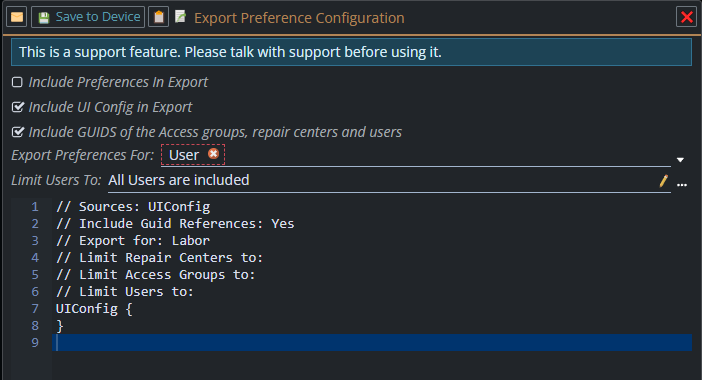
Or for a specific user/access group etc..,
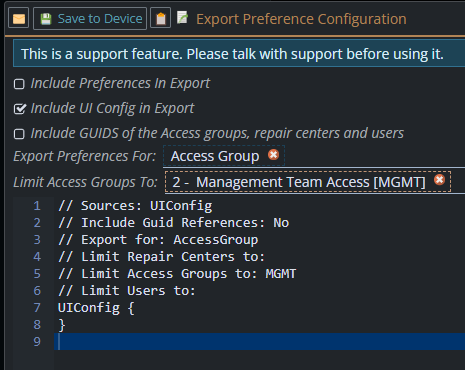
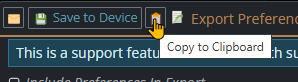
At the top there are 3 buttons to email, save to device or copy to clipboard.
The output will be in a text format file, in a .kdl structure (pronounced 'cuddle' or 'k-d-l')
Once you've exported it, you can now edit it and import it back in
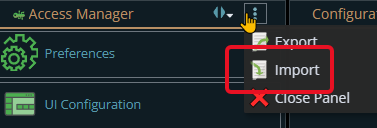
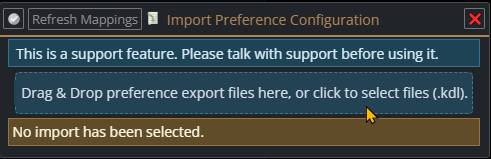
There are many questions that may show up depending on what you exported and what has changed. In this case it 'warns' you that everything is identical - so you aren't surprised when nothing changed but you expected a change.
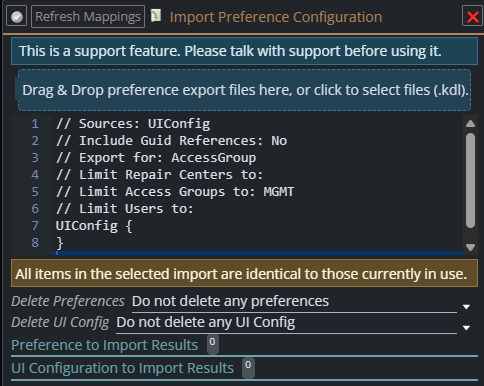
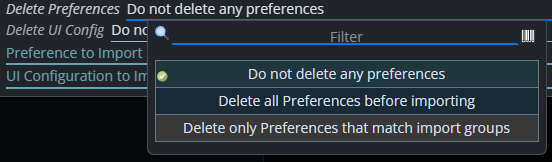
The Delete Preferences/UI Config tell the program what to delete before it imports:
For more assistance please contact our Professional Services.