
 Maintenance Connection Everywhere (MCe) · EAM/CMMS manuals
Many email applications block images by default to help protect users from spam, tracking, and potentially unsafe content. If images are blocked, you may not see screenshots, diagrams, QR codes, or other visual content included in our newsletters.
Follow the steps below to ensure future Maintenance Connection Canada (MCC) newsletters display correctly.
This guide uses Microsoft 365 Outlook Version 2606 (Build 20131.20154) as an example. The exact menus and wording vary between versions and email applications. However, it demonstrates the general concept, which you can use whether you're using one of the many Outlook versions or a completely different email application. If you'd like to contribute screenshots for your version or email application, we'd be happy to add them. Send your contribution to [email protected] and let us know whether you'd like to be credited for your work. See the discussion at the bottom of this page if your email application's interface doesn't match the screenshots shown here.
Step 1: Allow Automatic Image Downloads
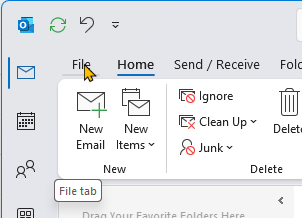
Step 1.1: Open the File Menu
Open Microsoft Outlook, then click File.
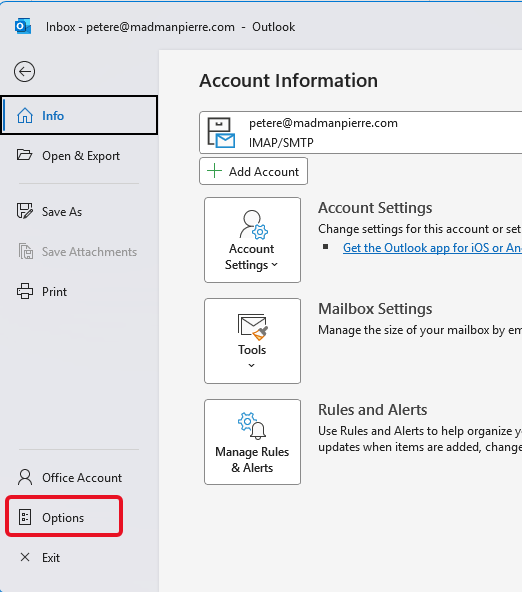
Step 1.2: Open Outlook Options
In the left navigation pane, click Options.
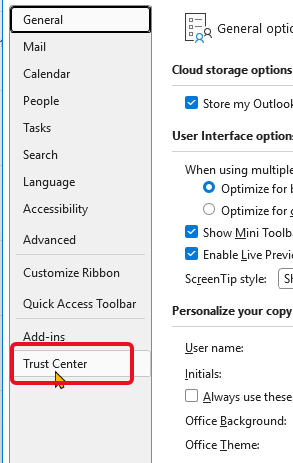
Step 1.3: Open Trust Center Settings
In the Outlook Options window, select Trust Center, then click Trust Center Settings.
Step 1.4: Enable Automatic Downloads for Trusted Senders
Select Automatic Download from the left menu.
Ensure that the following option is checked:
Permit downloads in email messages and meetings from senders and to recipients defined in the Safe Senders and Safe Recipients Lists used by the Junk Email filter.
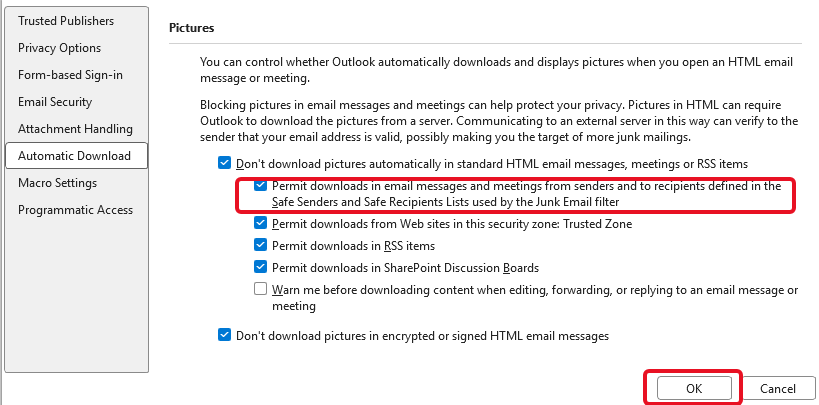
Click OK to save your changes.
Note: This setting works when the sender has been added to your Safe Senders list.
Step 2: Add MCC to Your Safe Senders List
If images are still blocked, add the MCC newsletter sender to your Safe Senders list.
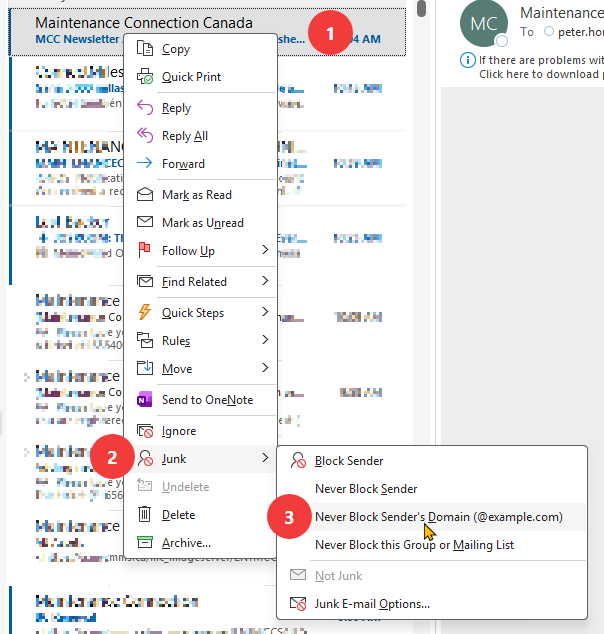
- Open an email from Maintenance Connection Canada.
- Right-click the email in your Inbox.
- Select Junk.
- Click Never Block Sender's Domain.
This tells Outlook that emails from MCC are trusted, allowing images to display automatically in future newsletters.
Why Does Outlook Block Images?
Outlook blocks images from unknown senders to help protect your privacy and reduce unwanted content. Once a sender is marked as trusted, Outlook can automatically display images in future emails.
Using a Different Email Application?
Every email application has its own settings for displaying images. If you use Gmail, Apple Mail, Thunderbird, Yahoo Mail, or another email client, look for options such as:
- Always display images
- Always trust this sender
- Add to Contacts
- Add to Safe Senders
The wording and location of these settings vary between email applications and versions, but the overall process is generally the same: mark the sender as trusted so future emails can automatically display images.