

 Maintenance Connection Everywhere (MCe) · EAM/CMMS manuals
The Home page will have 'Timesheet' as one of the options. Technicians can edit their own timesheet. Administrators can edit themselves and others.
This page looks at the setup changes that can be done by administrators, not individual users
Though if there is a need, administrators can set it up specifically for an individual user or access group.
UI setup
It is common for your admin to remove some unnecessary columns, removing one or more of:
- Type (if all time is regular)
- Account
- Category
- Comments
- One or more days of the week if you 'never' work specific days of the week
- The terminal column 'total' (total for the work order/type)
The fewer columns you have, the wider you can make some (or all) columns for example to see the full header for a given window or device width.
There are 2 places for setting up, both are found in the Access Manager
Getting to Access Manager
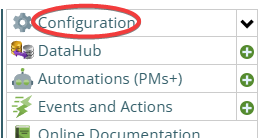
The Access manager requires that you have rights to the "Access Manager" license. YOU decide what permissions it needs, not us, that is discussed elsewhere.) The Access Manager is on the Configuration page
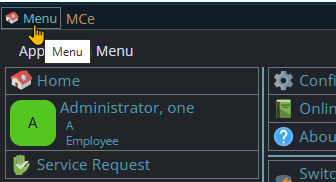
Start by clicking on the main menu button on the left panel, top left portion.
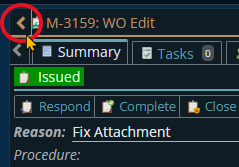
If the menu button isn't visible, you are likely on a screen too narrow to see everything, press on the left pointing gold button to take you so you can see the menu button.
Variation 1: What you have access to
Depending on the size of your screen, what products your company has purchased and what rights you have been granted, the choices in the menu will vary.
Variation 2: How wide your window is
The menu will show up as 1, 2 or 3 columns depending on how wide your screen is.
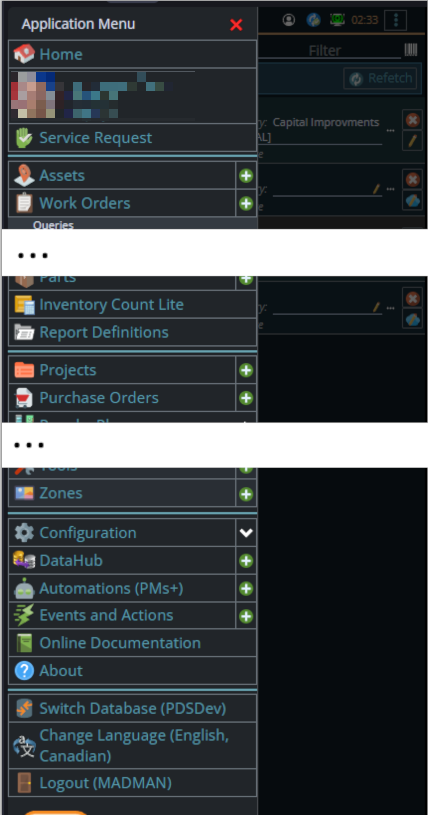
If you are on a cell phone, and some smaller tablets in portrait mode or a narrow window on a laptop or desktop, you'll see the menu as one column that you scroll through using your finger or the scroll wheel or the scroll bar depending on your device, browser and whether you have a touch screen or not.
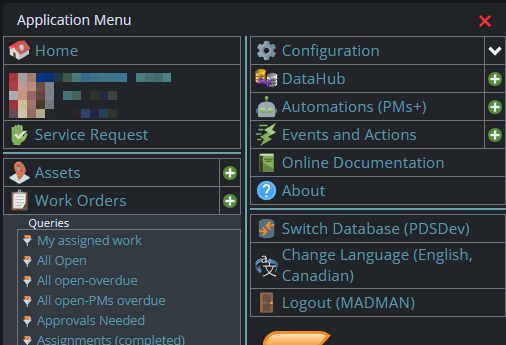
A bit wider, some cell phones in landscape, some tablets in portrait, most tablets in landscape and 'somewhat' wider laptop/desktop, will show it as 2 columns wide, with the middle column available on the left by scrolling down
And wider screens, some landscape tablets, and wider windows on a laptop or desktop show it as 3 columns. If you have all the dropdown sections expanded, it may still require vertical scrolling to see all the choices depending on the height of your device or window.
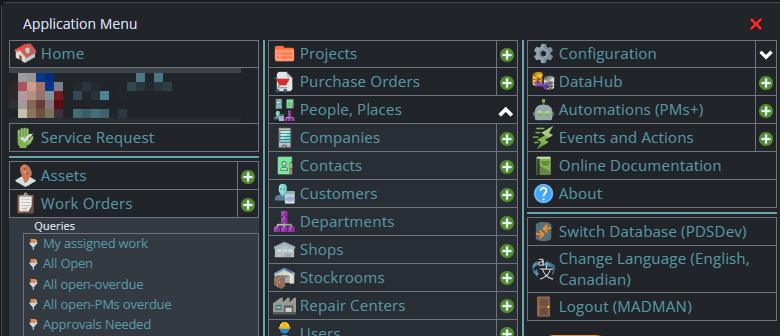
Once the menu is up, the exact location of the configuration button depends on how wide your window is and how many options you have access to. On most it will be at the top of the 2nd or 3rd column of the menu but on a cell phone or narrow window, it will be down partway in the first column.
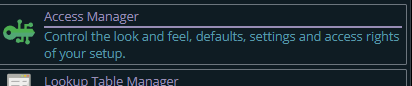
Then from there you choose the Access Manager, or what we call the funny green key
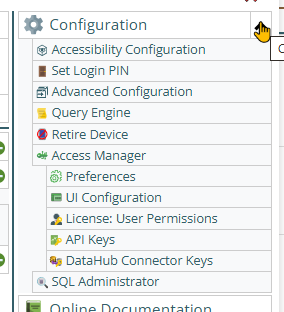
You can also click on the right hand V button in the main menu (if you don't already have it open), noting if you do it this way, you can directly pick the Access Manager tool that you want to go into.
Preferences setup:
The current Timesheet preferences can be found in the Access Manager Preferences, System, Components:
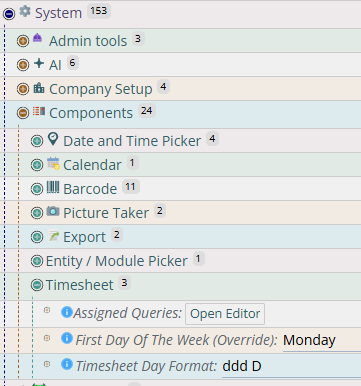
The Assigned queries is discussed in a section below.
The 1st day of the week is hopefully clear.
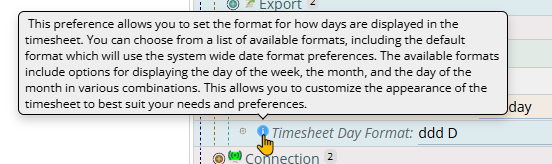
The Timesheet Day Format shows how the header will display the day. We use industry standard date format.
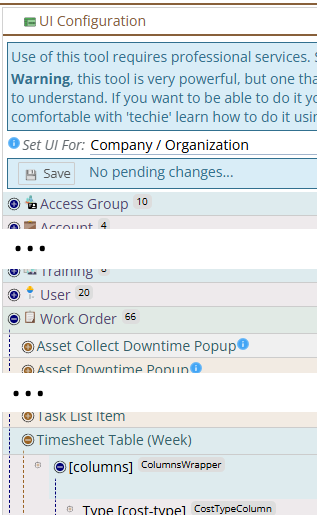
UI Config setup:
The screen shot below shows where to find the Timesheet UI Config
The fields you can hid or show are as below:
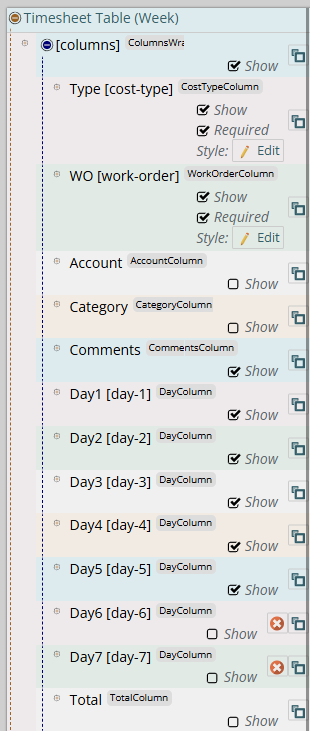
In the screen shot above,
- day 6, 7 have 'overrides' to make them not show (see the red circle with X)
- Account, Category and Total are, by default, not showing - but you can set them to show if you want
What rows are returned as 'possible' rows?
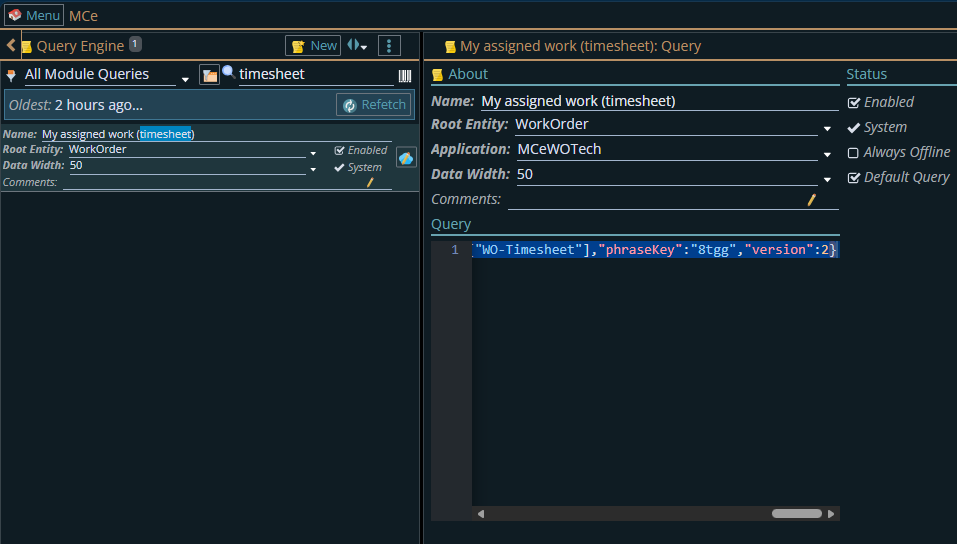
The query is best edited in an external tool like Notepad++