
 Maintenance Connection Everywhere (MCe) · EAM/CMMS manuals
Note: This is applicable to a Custom Report and will not apply to a Base Report. For a Base Report, create a copy of that report, then follow these steps in your copied report.
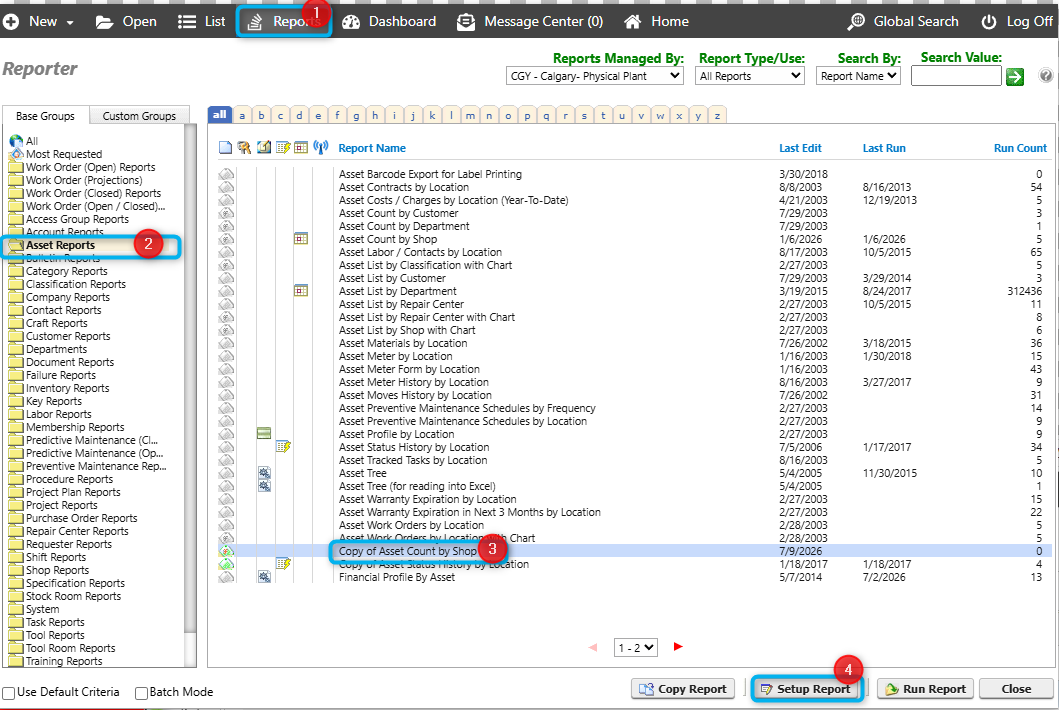
First, go to Report > Select Base Group > Select your Custom Report > hit Setup Report.
How to get to seup for a report
Once you click Setup Report, a pop-up will appear. Click on Criteria, then Criteria Builder.
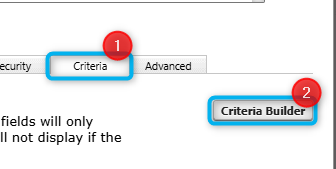
A bigger view if you can't find the criteria builder
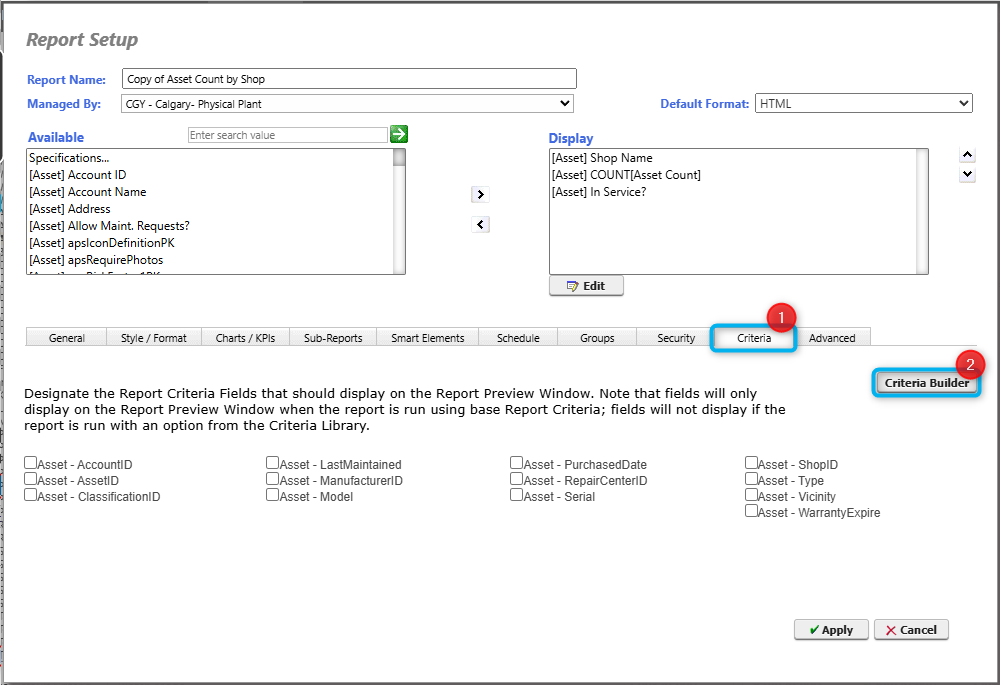
In the Criteria Builder Pop-up, select the Criteria you want to add, then click the move icon, then hit Apply.
How to find the name of the field, especially if not obvious
You need to know the name of the field, in most cases they are self explanatory. If you can't find it easily, such as we picked in the example below, you can go to the UI and right-mouse on the field you are interested in and it will show you what it is. We picked In-Service because it is an example of one where the underlying data is not obvious.
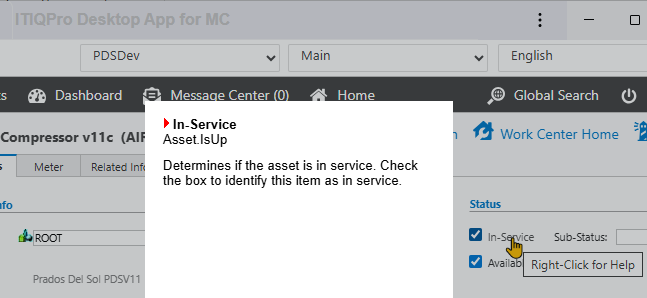
It shows that the table is Asset and the column is 'IsUp'. The dot between is the divider between the table name and the column name.
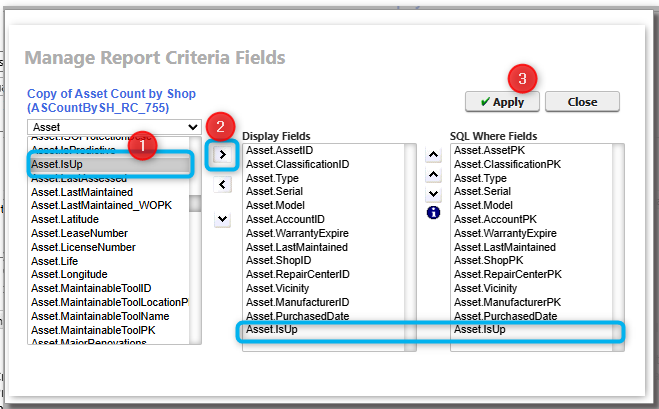
Once back to the Report Set-up, click on Apply. Once saved, you can go back and run your custom report to see the additional criteria.
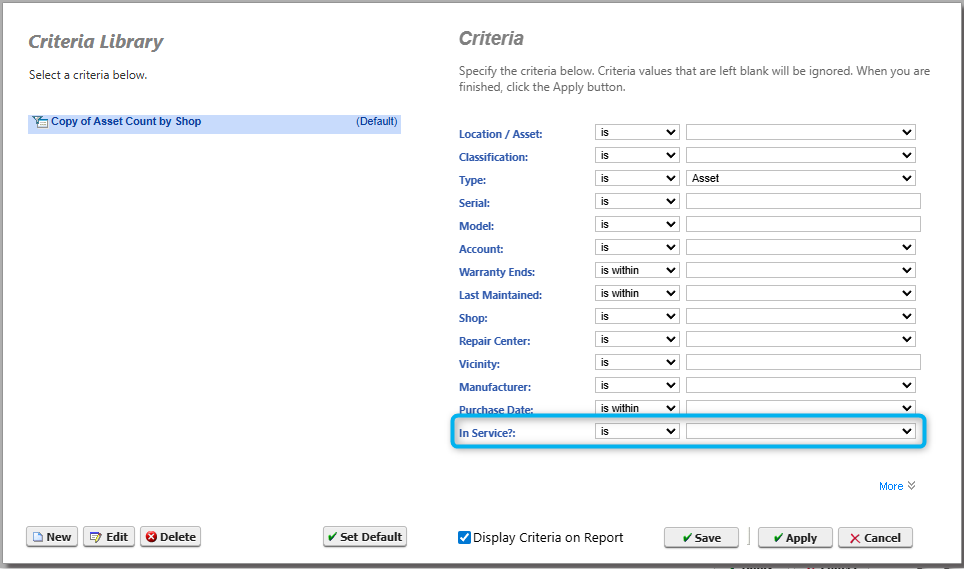
From here, you can change the criteria , so in our example here, you could set the value to 'is' True for the IsUp/in service and then hit save or apply.