 Maintenance Connection Everywhere (MCe) · EAM/CMMS manuals
If you get the 'Remote Management Key. This program requires a key when not run from localhost..." message
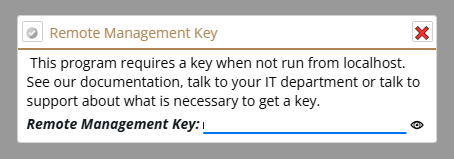
First key in understanding, this is the remote management key. Normally you will want to run from localhost, not remotely in which case, when you access the page via a local connection on the server itself, it has an automatic bypass so it doesn't requesting the 'remote access' key.
Or worded another way: and it means you are trying to access extremely critical security functions from a non-secure location.
Existing systems:
People often ask "I've never seen this before is it new'? No, this is a message we have had for decades, What's likely new is this is the first time you've tried to access the features remotely. Likely when you had our team helping, they would have walked you through connecting to your server and you had no obvious way of knowing that it made a difference for these features until you saw this message.
Initial, or recently changed config problems:
It can also mean indirectly that you have some configuration problems, maybe you recently added cloudflare (a very common problem for our customer base). In general these functions should be accessed from 'localhost' which proves to the software that you are a trusted person for this level of access, so let's start there:
Did you add or change Cloudflare or some other DNS+proxy system since you last used these features
This could have been in the last year if you haven't needed to go in in the last year for example.
What can happen is DNS + a proxy system like Cloudflare can cause you to access the site remotely even when locally on the server.
You can address this problem in 1 of 3 different ways:
- Fix the DNS / proxy to not end up remote
- Add a record to the HOSTS file on the server causing the domain to use 127.0.0.1 when accessed locally (see details below)
- Add your own remote key. The remote key uses 2FA type features so a standard 2FA app like Microsoft or Google Authenticator can provide the tokens, you just have to generate a code (we have documentation for generating the 2FA code and registering it). You WILL need to connect using localhost to set this up - hopefully you understand why we say 'obviously'.
You might need to edit the file name "Hosts" on your MC app server and point your URL to it.
You need to edit the file name "Hosts" on your MC app server and point to eam.example.com to 127.0.0.1 so it can run as local. To locate the Hosts file, follow the guide below: Run Notepad++ or ever Notepad as Administrator:
- Click on the Start menu, type Notepad (or whatever yours is), right-click on the tool you want, and select Run as administrator. If prompted, enter your administrator password or confirm the action.
- Open the Hosts File:
- In Notepad, go to File > Open. Navigate to the following path:
C:\Windows\System32\drivers\etc\. Make sure to change the file type from "Text Documents (.txt)" to "All Files (.*)" to see the hosts file. - Select the hosts file and click Open.
- In Notepad, go to File > Open. Navigate to the following path:
- Make Your Changes:
- Edit the hosts file as needed.
- Save the File:
- After making your changes, go to File > Save to save the file.
Search "Remote Management Key" to find all the documents that talk about it if you think you really want to come in without going through localhost. Probably the 1st you should check out is General Configuration