
 Maintenance Connection Everywhere (MCe) · EAM/CMMS manuals
For support reasons sometimes we ask you to run some SQL. To get to our SQL Administrator tool (often called SQL tool for short)
Getting to the SQL Administrator Tool
The Access manager requires that you have rights to the "Access Manager" license. YOU decide what permissions it needs, not us, that is discussed elsewhere.) The Access Manager is on the Configuration page
Start by clicking on the main menu button on the left panel, top left portion.
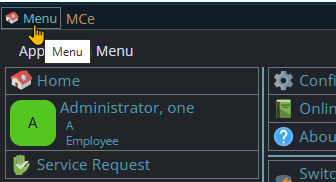
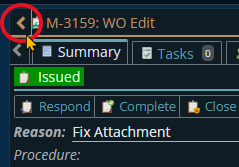
If the menu button isn't visible, you are likely on a screen too narrow to see everything, press on the left pointing gold button to take you so you can see the menu button.
Variation 1: What you have access to
Depending on the size of your screen, what products your company has purchased and what rights you have been granted, the choices in the menu will vary.
Variation 2: How wide your window is
The menu will show up as 1, 2 or 3 columns depending on how wide your screen is.
If you are on a cell phone, and some smaller tablets in portrait mode or a narrow window on a laptop or desktop, you'll see the menu as one column that you scroll through using your finger or the scroll wheel or the scroll bar depending on your device, browser and whether you have a touch screen or not.
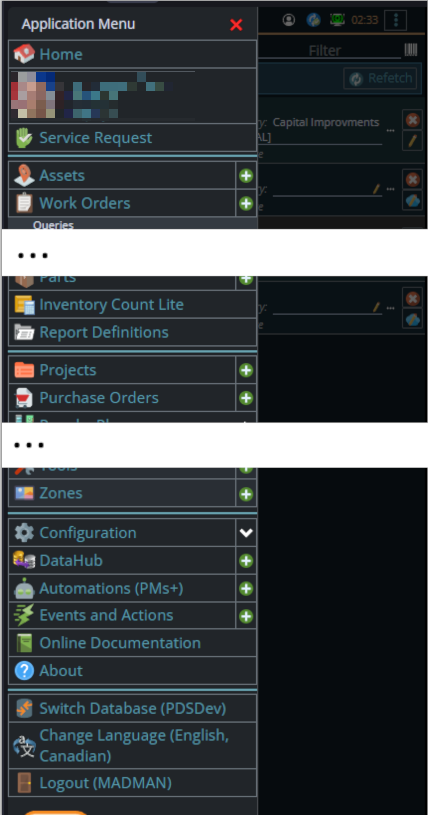
A bit wider, some cell phones in landscape, some tablets in portrait, most tablets in landscape and 'somewhat' wider laptop/desktop, will show it as 2 columns wide, with the middle column available on the left by scrolling down
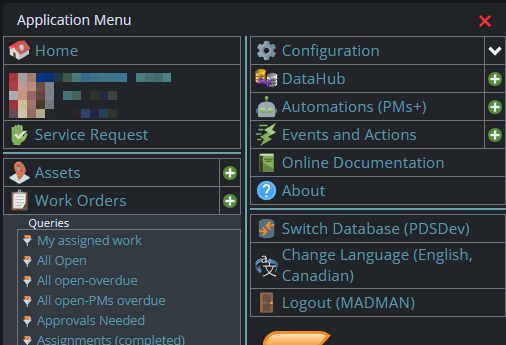
And wider screens, some landscape tablets, and wider windows on a laptop or desktop show it as 3 columns. If you have all the dropdown sections expanded, it may still require vertical scrolling to see all the choices depending on the height of your device or window.
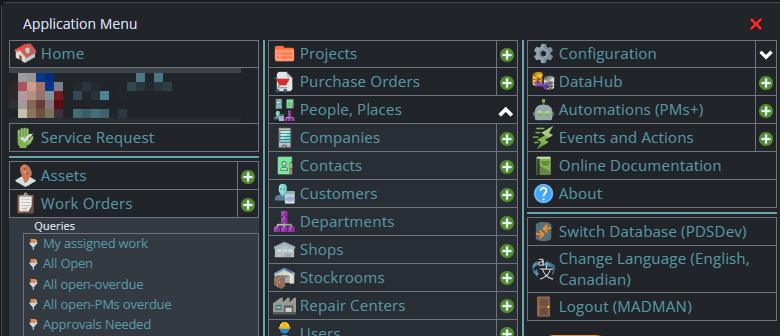
Once the menu is up, the exact location of the configuration button depends on how wide your window is and how many options you have access to. On most it will be at the top of the 2nd or 3rd column of the menu but on a cell phone or narrow window, it will be down partway in the first column.
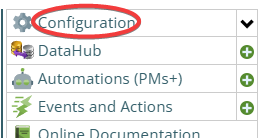
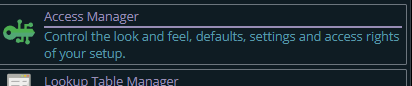
Then from there you choose the Access Manager, or what we call the funny green key
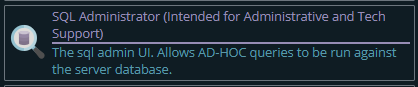
You can also click on the right hand V button in the main menu (if you don't already have it open), noting if you do it this way, you can directly pick the Access Manager tool that you want to go into.
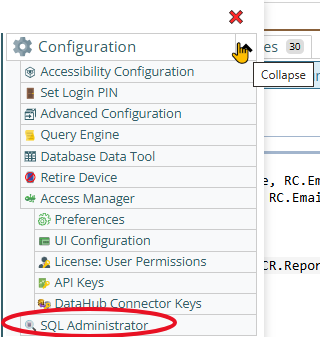
What if the SQL Administrator tool isn't on the menu?
You have to give yourself access or get someone with 'Access Manager' rights to give you access, or get someone else to run the SQL for you.
Getting to Preferences
Getting to Access Manager
The Access manager requires that you have rights to the "Access Manager" license. YOU decide what permissions it needs, not us, that is discussed elsewhere.) The Access Manager is on the Configuration page
Start by clicking on the main menu button on the left panel, top left portion.
If the menu button isn't visible, you are likely on a screen too narrow to see everything, press on the left pointing gold button to take you so you can see the menu button.
Variation 1: What you have access to
Depending on the size of your screen, what products your company has purchased and what rights you have been granted, the choices in the menu will vary.
Variation 2: How wide your window is
The menu will show up as 1, 2 or 3 columns depending on how wide your screen is.
If you are on a cell phone, and some smaller tablets in portrait mode or a narrow window on a laptop or desktop, you'll see the menu as one column that you scroll through using your finger or the scroll wheel or the scroll bar depending on your device, browser and whether you have a touch screen or not.
A bit wider, some cell phones in landscape, some tablets in portrait, most tablets in landscape and 'somewhat' wider laptop/desktop, will show it as 2 columns wide, with the middle column available on the left by scrolling down
And wider screens, some landscape tablets, and wider windows on a laptop or desktop show it as 3 columns. If you have all the dropdown sections expanded, it may still require vertical scrolling to see all the choices depending on the height of your device or window.
Once the menu is up, the exact location of the configuration button depends on how wide your window is and how many options you have access to. On most it will be at the top of the 2nd or 3rd column of the menu but on a cell phone or narrow window, it will be down partway in the first column.
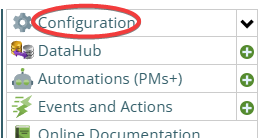
Then from there you choose the Access Manager, or what we call the funny green key
You can also click on the right hand V button in the main menu (if you don't already have it open), noting if you do it this way, you can directly pick the Access Manager tool that you want to go into.
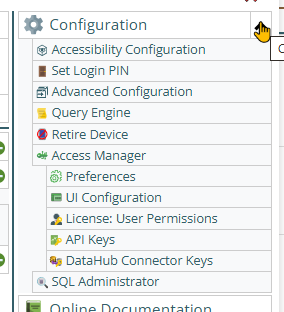
Now press the Preferences button
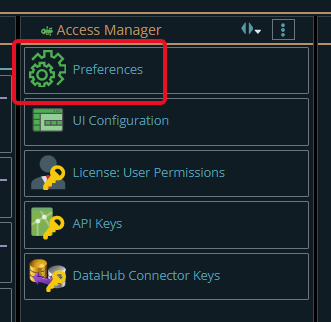
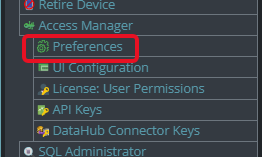
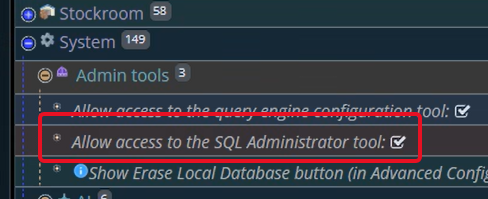
To give you/someone access to the SQL Administrator tool:
1. Pick who should (usually for this tool it should be by access group and/or individuals)
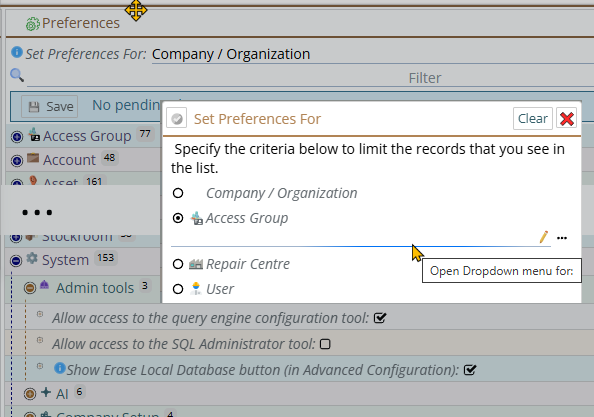
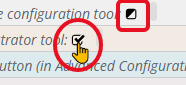
2. Make sure it shows a checkmark, not the "this is set at a higher level" box. In the image below the checkbox with the circle around it shows that, at this level it is checked - turned on whereas the checkbox with the square around it shows that 'this is set at a higher level', at the company level in this case. So the one with the square is saying that it is not being overridden by the Access Group we picked, rather it will be whatever the Company/Organization level has it set at, and it will change when the Company/Organization level value changes.
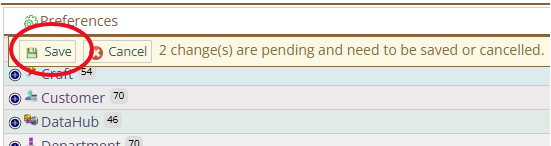
3. Hit save.
If this was done in your browser, you should have permission immediately.
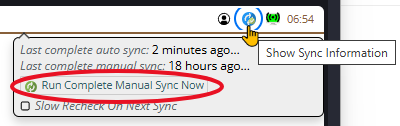
4. If someone else did the above steps, you'll need to wait a few minutes for it to sync, or speed it up by running a complete manual sync 'now'.
In the SQL Administrator tool
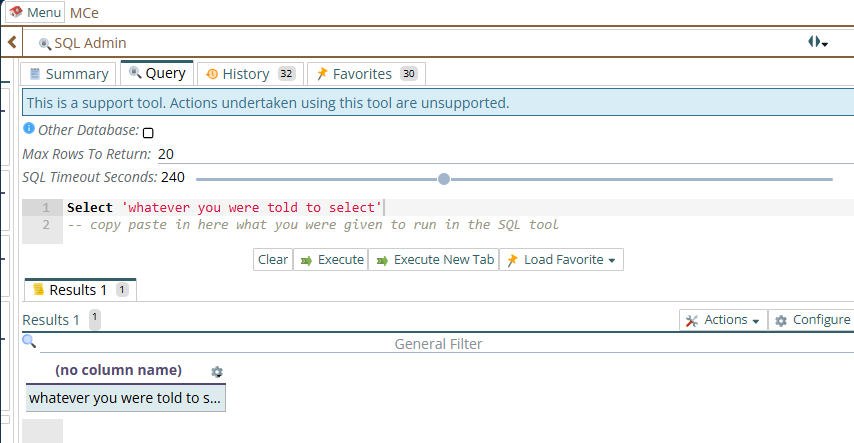
On the SQL Admin tool screen, the Query tab is where you paste the SQL you were given. Then typically hit the "Execute" button, which in many cases will show you some results below it.
If you are expecting more than 20 rows in your results, you may want to set the Max rows to Return higher. The max is set in case you enter some SQL that takes a very long time per row to return so it doesn't 'kill' the server with overload or bog down your internet connection too long.
Getting the results out of the tool
One you get some results, you can copy or save the results somewhere.
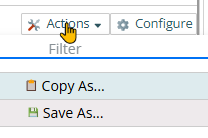
You can copy to the clipboard in several formats: JSON or CSV are usually the most useful formats - decide depending on your preference or what you were asked to do.
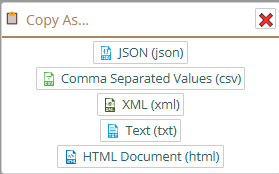
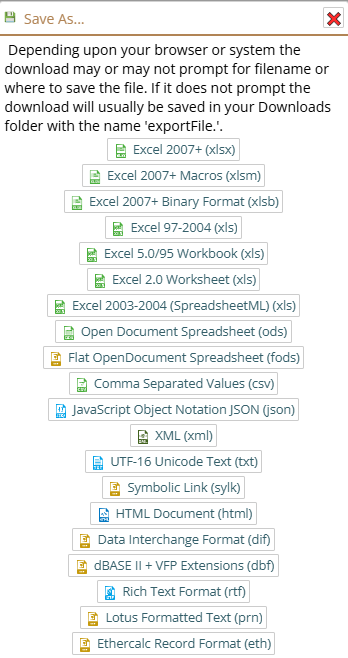
When using Copy As .... any JSON values will have lots of backslash (\) characters in it to make it format in JSON without errors. If you are using the tool to plumb for data with JSON fields such as the aps audit log and aps transaction audit log, give serious consideration to saving it as XLSX which is a format that is able to accept it without all the extra \'s in it
Or you can save it to a file you can open or email. In general XLXS for most purposes is highly convenient and we do some default column widths based on data type that give you a good starting point for viewing the data.
Getting Access to the SQL Admin Tool:
If you don't see the SQL Administrator tool, it is because you have not been given permission to see it. Permission can be set by anyone your organization has given rights to the Access Manger license:
To get to change the preferences you have to have access to the "Access Manager"
Getting to Access Manager
The Access manager requires that you have rights to the "Access Manager" license. YOU decide what permissions it needs, not us, that is discussed elsewhere.) The Access Manager is on the Configuration page
Start by clicking on the main menu button on the left panel, top left portion.
If the menu button isn't visible, you are likely on a screen too narrow to see everything, press on the left pointing gold button to take you so you can see the menu button.
Variation 1: What you have access to
Depending on the size of your screen, what products your company has purchased and what rights you have been granted, the choices in the menu will vary.
Variation 2: How wide your window is
The menu will show up as 1, 2 or 3 columns depending on how wide your screen is.
If you are on a cell phone, and some smaller tablets in portrait mode or a narrow window on a laptop or desktop, you'll see the menu as one column that you scroll through using your finger or the scroll wheel or the scroll bar depending on your device, browser and whether you have a touch screen or not.
A bit wider, some cell phones in landscape, some tablets in portrait, most tablets in landscape and 'somewhat' wider laptop/desktop, will show it as 2 columns wide, with the middle column available on the left by scrolling down
And wider screens, some landscape tablets, and wider windows on a laptop or desktop show it as 3 columns. If you have all the dropdown sections expanded, it may still require vertical scrolling to see all the choices depending on the height of your device or window.
Once the menu is up, the exact location of the configuration button depends on how wide your window is and how many options you have access to. On most it will be at the top of the 2nd or 3rd column of the menu but on a cell phone or narrow window, it will be down partway in the first column.
Then from there you choose the Access Manager, or what we call the funny green key
You can also click on the right hand V button in the main menu (if you don't already have it open), noting if you do it this way, you can directly pick the Access Manager tool that you want to go into.
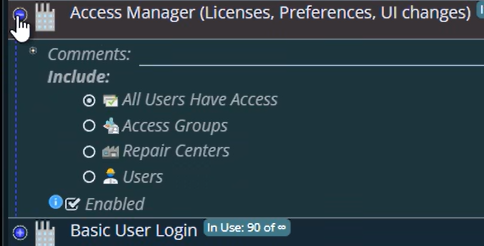
Getting access to the Access Manager license so that you can get access to the SQL Admin tool
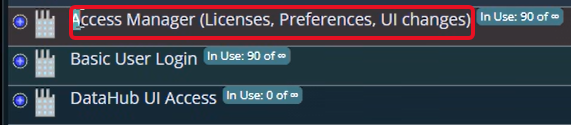
The default OOB (Out of Box) is 'all' but your system probably has it shut down to an access group or two or a handful of users. We (and you) can't see who if you don't have access to this screen, but your IT or EAM administrator should know who.