

 Maintenance Connection Everywhere (MCe) · EAM/CMMS manuals
When a system is set up 'normally' for you, at first EVERYONE can change 'who' can use licenses. You will normally want to restrict this first.
It is a 'chicken and egg' problem. Someone has to have access to restrict who can have access, so everyone has access to start with. Obviously if some rogue person went in and took control, we'd (or you if you are on-prem) would just go in and restore the database and then set it up properly immediately.
Step 1 - get to the license manager
The Access manager requires that you have rights to the "Access Manager" license. YOU decide what permissions it needs, not us, that is discussed elsewhere.) The Access Manager is on the Configuration page
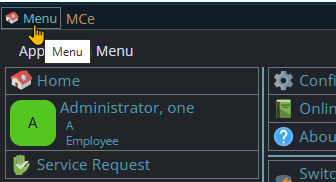
Start by clicking on the main menu button on the left panel, top left portion.
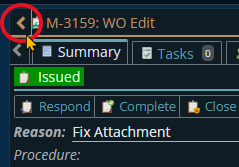
If the menu button isn't visible, you are likely on a screen too narrow to see everything, press on the left pointing gold button to take you so you can see the menu button.
Variation 1: What you have access to
Depending on the size of your screen, what products your company has purchased and what rights you have been granted, the choices in the menu will vary.
Variation 2: How wide your window is
The menu will show up as 1, 2 or 3 columns depending on how wide your screen is.
If you are on a cell phone, and some smaller tablets in portrait mode or a narrow window on a laptop or desktop, you'll see the menu as one column that you scroll through using your finger or the scroll wheel or the scroll bar depending on your device, browser and whether you have a touch screen or not.
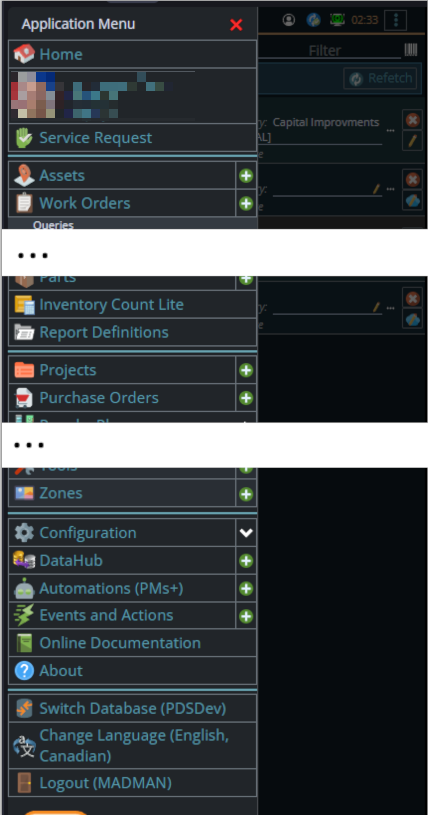
A bit wider, some cell phones in landscape, some tablets in portrait, most tablets in landscape and 'somewhat' wider laptop/desktop, will show it as 2 columns wide, with the middle column available on the left by scrolling down
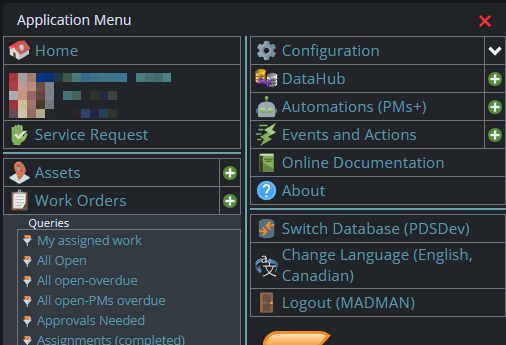
And wider screens, some landscape tablets, and wider windows on a laptop or desktop show it as 3 columns. If you have all the dropdown sections expanded, it may still require vertical scrolling to see all the choices depending on the height of your device or window.
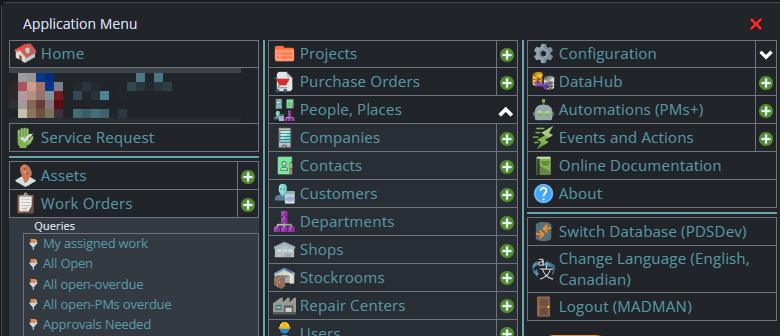
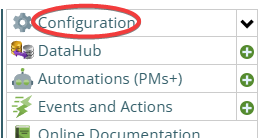
Once the menu is up, the exact location of the configuration button depends on how wide your window is and how many options you have access to. On most it will be at the top of the 2nd or 3rd column of the menu but on a cell phone or narrow window, it will be down partway in the first column.
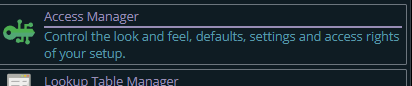
Then from there you choose the Access Manager, or what we call the funny green key
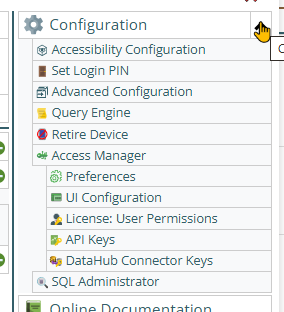
You can also click on the right hand V button in the main menu (if you don't already have it open), noting if you do it this way, you can directly pick the Access Manager tool that you want to go into.
This will take you to a screen that looks something like the following.
The specific license choices you see will vary depending on what products you have purchased.
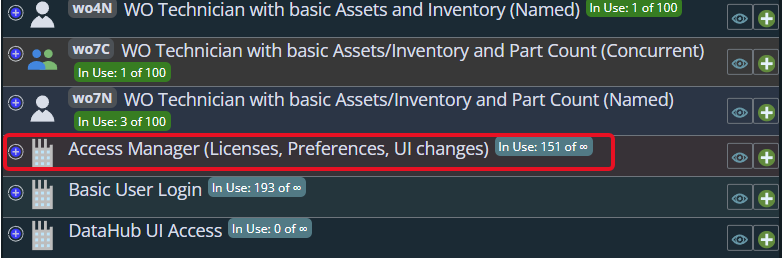
See how it says 151 of ∞ (infinite). That means that WE don't put any restrictions on how many people can have access to this tool.
You really should restrict who has access to this
But YOU should restrict access to those that you are OK with doing
- system level setup
- deciding who has access to which licenses (including this license)
- To be clear, this means deciding who can be blocked. So everyone who has access can block YOU and everyone except themselves, so you need to have trusted people having access to this.
- moving fields around on the screen, indeed between tabs
- Allocating Tokens for products like AI and DataHub - in other words, deciding how finite resources are 'spent'.
- Giving access to the API - so deciding who can modify your data from external programs
In general you'll either want to pick a small number of people or an access group. Normally 1 person is not a good idea, if that person dies and no one knows their password (and no one SHOULD know their password) then it will be professional services to, through the server/SQL regain access. A cumbersome exercise that will cost money.
Step by step setting who can have access to the access manager
You need to ADD a permission rule.
Then you need to CHOOSE who has permission.
Recommendation:
- Add 2 rules:
- 1. Pick a user - you for now, you can always delete it later.
- 2. Pick the admin access group, likely the access group you belong to, unless you aren't in the group that will do the majority
Again - add a rule for yourself first, I'll show how below. Why yourself 1st? because if you add someone else and only them -in a very brief time you will lose access to make any other changes!
Add

Choose users, the choose yourself from the list. This is a multi-select so you can choose additional users if you want.
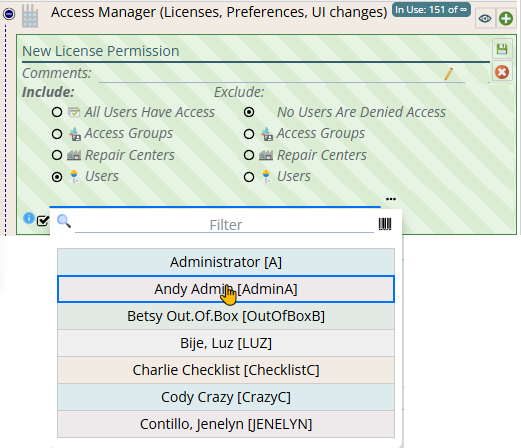
Commit to the rule
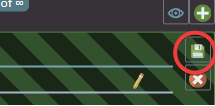
It's not changed yet, admin features in MCe tend to, for safety, have 1 extra save step, to avoid making mistakes where you need to do a & b, and if you do a, save ... you now can't do b.
Save pending changes (only one for now) the rule changes you made

You can now follow the same process to add one or more admin access groups.