Maintenance Connection Everywhere (MCe) · EAM/CMMS manuals
If you are on our SaaSs, you don't need to know about this, we handle it all for you. This exists to make it easier and less costly for our on-prem customers.
History
The standard way most of our on-prem customers have used was to set up eMail using the Microsoft Windows Server SMTP relay server. There have always been other ways, such as setting up one of many SMTP servers that can relay. All of these, SMTP, are 'send and forget' solutions from the MC side of things. Depending on how you set them up, they may be 'better' than that in terms of logs and other information.
This means:
- there is nothing other than logs that tell you WHETHER the email was sent
- there is no copy of the email that was sent, just the log entry that something was sent
When Windows Server 2022 came out, they dropped support for their SMTP relay server. There was a way to 'get it back' but some automatic installs turn it off silently causing email to 'randomly' fail when 'but we did nothing to the server' (other than allow automatic Windows upgrades!)
MCe has used a different way to send out since the beginning. It handles it's own reliability. After Windows Server 2022 took away their relay server, we extended our reliability email server to allow MC to relay through it and gain the benefits of the 'reliability' while also having the 'relay' feature that Windows Server took away and/or made inconsistent and unreliable.
Why you need/want it
As the history describes - Microsoft took away the ability to use their Relay server (or at least reliably)
Other solutions are a sledge hammer solution when all you need is a pair of tweezers. The typically take many hours to set up correctly, and then you are just using this one tiny piece of the product, but if you don't set the other parts up correctly, One of the best we found in 2022 - still difficult to set up, but it was free and it worked, stopped supporting the product a couple years back and they recommend for security safety reasons to stop using it. But that one typically took several hours and server teams sessions to set up and test.
The MCe reliability email Server was initially designed for one thing - to easily let MCe send emails. Then the extension due to Windows 2022 was to as easily as possible let MC send emails.
Sent folder
We have a sent folder (like Outlook), this is not part of the SMTP server, this is something that Outlook did, and for decades we have been doing as well for the same reasons. This means we have a record of all the emails recently sent (there is a cleanup, currently set to about a week) which lets you see what was sent. And this lets you copy some (or all)
Pending to send folder
You can move sent files into this directory to resend them
Failed to send folder
After a certain number of rejections it gets moved to the Failed folder
Some slightly technical details:
Email sends 'to the next server', that server might be the destination.
If it isn't the destination it sends to the next server, and so on and so forth until it reaches the destination or it fails.
Typically you will have 2 to 'many'. Your end and 'the final destination'. You (or they) may have an anti-spam that silently rejects it.
Technically there can be 1 if you are sending internally.
Rejecting: - your sender doesn't align correctly, you are sending [email protected] to a server that says "that's not my domain", and they might reject with a response or silently reject.
- the target isn't an allowed target
- the contents look like spam, this almost never will send a rejection
What does the MCe Reliability server do if an email is sent but doesn't arrive?
Nothing.
It is up to your IT department to use the information available to set things up properly. The Reliability server lets you see the details of the email that are sent, then you can check if they arrived, and if they didn't arrive, unlike a simple log, it lets your IT check all the details to try to figure out WHY it didn't arrive.
It also lets you know that it WAS sent, rather than wondering WHETHER it was sent.
The most common question to ask, if you are getting lots not arriving is: Was the sender not an approved sender for the domain? MC makes it very hard to NOT use [email protected] and it then often gets rejected. The MCe Reliability server lets you override that and use one that you know will work. In fact we RECOMMEND you set it up so it overrides it, because the MC default almost never works and is almost always rejected, meaning you have to remember to change it on every single report. That by itself for most MC users makes it far more reliable.
Another: Has your domain/sender been black listed?
Does the MCe Reliability server tell us WHY it is in the reject folder?
No.
All it knows, is that the receiver deigned to tell us that rejected it, which might be nothing. If it was rejected, we store the message itself in the failed folder where you can edit it and then move to the pending folder. If there is nothing there, then you can verify that it was sent at least.
It is up to your IT department to then use this information.
And the process is very similar to the above, because the reasons can be identical.
How does this compare to the old Microsoft Relay server?
If you set it up correctly, it will have logs. But while you have logs, you won't have the email in a way you can 'resend it' after fixing whatever the problem was.
But we have the ACTUAL email in the sent folder, all it has is "it failed"
It will use the email address MC gives it to send, which by default is [email protected] which also means by default it should fail with most correctly set up SMTP servers.
We support the modern protocols. The Microsoft Relay server would convert the MC to a more modern. But the MCe Reliability server lets you pick a user name and password, effecting adding that to the info MC gives which is something you couldn't do with the Microsoft relay server.
What does it cost?
If you have your Accruent MC SMA through us, it is no extra charge for the software. We charge only the actual time you need for us to help you set it up. Typically this is a 30 to 90 minute process depending on how much you know of your setup.
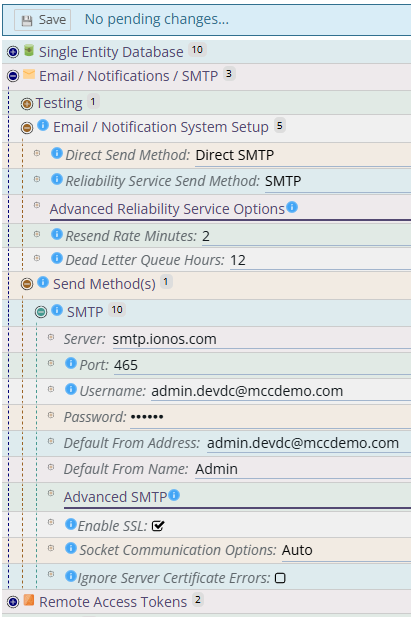
How to set it up
You need MCe 12.1.2 or more recent installed. But you need MCe for almost anything we provide, like our Desktop App for MC, LoginHub, DataHub, API, AI, and for the most sophisticated ways to access your EAM/CMMS data so this document will assume that you have MCe installed.
You need to access the Advanced tools
Getting to Advanced Tools
This page is designed for when you know you need to get into the IT Management advanced tools. If you are on a SaaS you will not be granted access to these tools as they can affect all customers on the SaaS. If you are in an on-prem system you will periodically need to be here to do all the management that we do for our SaaS customers.
For on-prem, you run your own server(s), assistance in this section is charged by the hour using our Professional Services.
On our SaaSs, changes done in here are usually no extra charge, included in your SaaS fees.
For on-Prem and our SaaSs, which changes should be made will fall under either SMA (if you have SMA that includes support time) or under Professional Services depending on the specifics.
Other dealers who run SaaSs, such as Accruent, will also not let you access it, and with have their own policies as to what is covered and what is not under their SaaS fees.
The 1st step is to double click on one of the large corporate logos. The are found on the login page and in the menu (even if you don't have a user account to get into MCe, because this is IT level changes that need to be done even before the 1st user CAN log in.)

Then click on this button to get into the advanced IT Management tools

If you get:

It means you weren't accessing it from the server, you are trying to access the tools from a remote location. If you have set it up to allow remote access (a very infrequent setup) then type in the key for 'this minute'. Or go and run these tools as intended, from the server.
When you are in, you will see the tabs for the tools, pick the one that you were trying to get into.

General system settings are in the first tab.
Installing, Deleting, managing and activating is done in the System License Manager
Multi-Tenant setup (most commonly on SaaSs) is done through that tab.